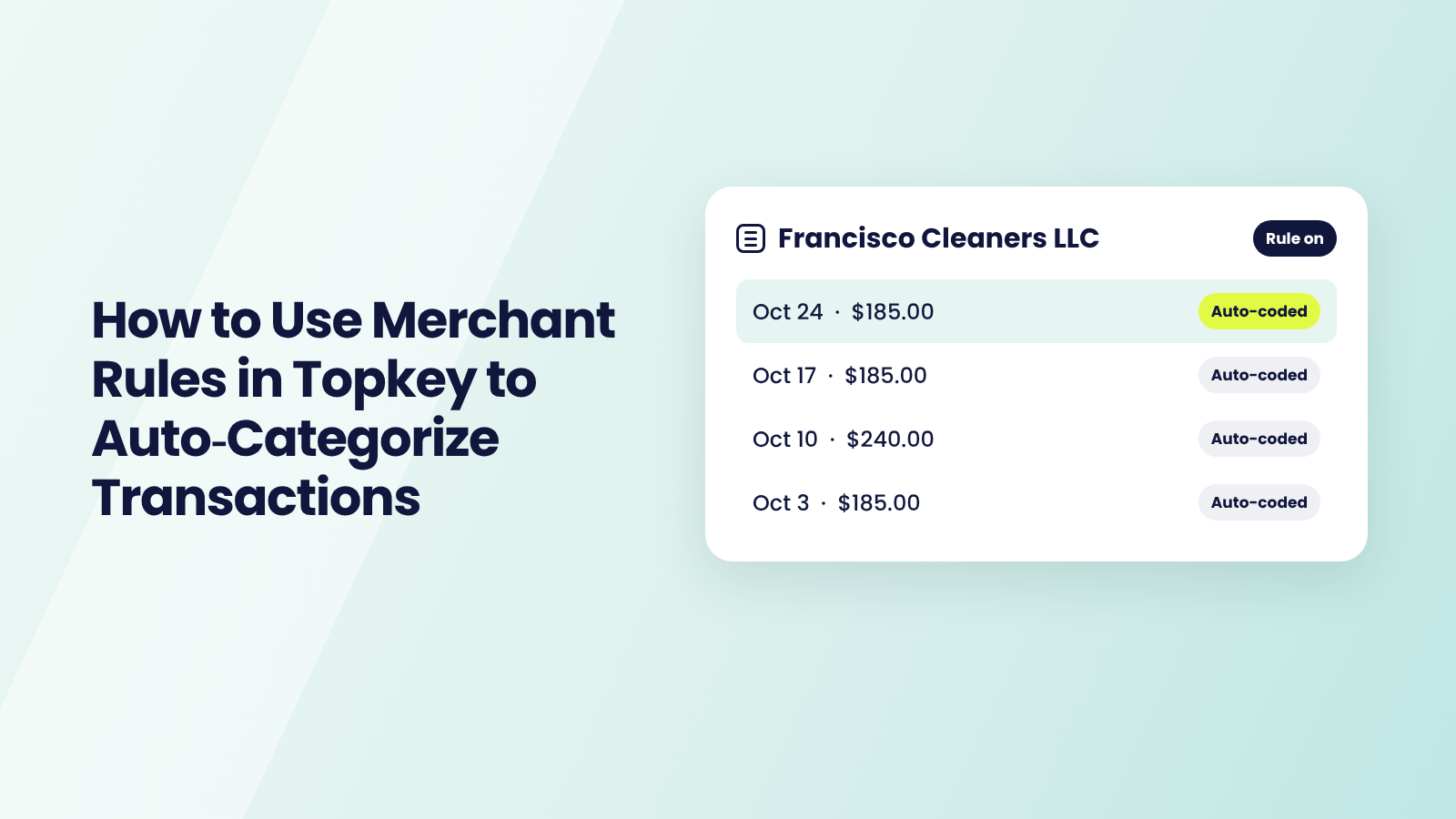
Some charges come in the same way every month. Slack is always a corporate software expense. Shell is always fuel. Merchant rules let you code those charges once, so Topkey fills in the details every time they come back.
This guide shows how to auto-categorize credit card transactions with merchant rules, using the practices Topkey's customer success team teaches property managers. Start with the rules below, then build your own.
Before you start: you need Admin access, or a role with the Merchants permission, to create rules. If you don't see Create merchant rule in Step 1, ask an Admin to give your role that permission.
What Is a Merchant Rule?
A merchant rule tells Topkey how to code every charge from one merchant. It looks at the merchant name on each incoming charge, and when the name matches, it fills in the fields you chose: the bill-to category (Bill to Owner, Bill to Corporate and so on), the property, and with your accounting software connected, the GL account, tracking class, location or department, and accounting vendor.
One label to know: on the rule form, Assign/Bill to Category is the bill-to category, and the field labeled Category is your GL account.
The rule runs the moment a charge arrives from your corporate cards, American Express or most connected bank feeds. It only fills coding fields that are still blank, so if a cardholder already chose Bill to Owner in their text, the rule keeps that choice. When a rule fills every field your team requires, the transaction is marked complete without anyone opening it.
Bookkeepers who come to Topkey from QuickBooks often ask whether they can set it once and have every matching transaction tagged automatically. A merchant rule is how you do that.
How to Create a Merchant Rule
Watch the walkthrough, then use the short version below.
The short version:
- On the transactions list, click the merchant name and choose Create merchant rule.
- Pick the original merchant name, then choose Exactly matches or Contains.
- Fill only the fields that never change, and save.
- Check the next charge. If it looks right, reopen the rule and check Apply to all matching transactions.
You can also create a rule from Settings, then Billing & Documents, Merchants and Rename Rules, by clicking Add Rule. Click here to open Merchant Rules in your signed-in account.
Five Rules for Every Merchant Rule
These five rules prevent the most common mistakes. Read them before you create your first rule.
1. Build the Rule on the Original Merchant Name
Every charge in Topkey has two merchant names:
- Original merchant: the name the card company sends, as it appears on your statement, like "OPENAI *CHATGPT SUBSCR." It's often in all caps, with store numbers or codes.
- Display name: the cleaned-up name Topkey shows on your transactions list, like "OpenAI."
Why it matters: when a charge arrives, Topkey checks the original name first. The display name can be added later, so a rule built on it may miss the charge when it first comes in.
Do this: open any transaction from that merchant and look under Merchant for Original merchant (as provided by the payment processor). When the rule form asks which name to use, pick that one.
2. Choose How the Name Has to Match
Every rule has a Rule type that tells Topkey how closely a charge's merchant name has to match the text you type:
- Exactly matches: the name has to be identical to your text, letter for letter. Use it when a merchant's name comes through the same way every time.
- Contains: the name only has to include your text somewhere. "HOME DEPOT" matches "THE HOME DEPOT #0418" and "HOME DEPOT 6532." Use it when the same merchant shows up with store numbers or extra text.
Why it matters: with Contains, short text catches the wrong merchants. "HD" would also match HD Supply and code it like Home Depot.
Do this: with Contains, type the longest part of the name that never changes, like "HOME DEPOT," not "HD." Capitalization doesn't matter, but spaces and punctuation must match the original name.
3. Only Fill in Fields That Are the Same Every Time
A rule can fill in these fields on every charge it matches:
- Bill to category: who the charge is billed to, like Bill to Owner or Bill to Corporate.
- Property: which home the charge belongs to.
- Category (GL account): the account in your accounting software where the charge is recorded.
- Accounting vendor: the vendor the charge is linked to in your accounting software.
Whatever you put in a field, the rule gives every charge from that merchant the same answer. Any field you leave blank is left for the cardholder to answer.
Why it matters: if Home Depot is billed to an owner one week and to corporate the next, a rule that sets the bill-to category will be wrong half the time.
Do this: fill in only the fields whose answer never changes for that merchant. Leave the rest blank, and the cardholder answers them in their text like before.
4. Let Only One Rule Match Each Charge
Two rules overlap when one charge's name fits both of them. For example:
- A Contains rule for "GOOGLE" matches every Google charge.
- An Exactly matches rule for "GOOGLE ADS" matches only Google Ads charges.
A Google Ads charge fits both rules.
Why it matters: Topkey doesn't pick the more specific rule. It uses whichever rule was created first, so your Google Ads charges could get your Google Workspace coding.
Do this: before you save, check your list of rules in Settings, then Billing & Documents, Merchants and Rename Rules for one that already covers that merchant. Give each product its own Exactly matches rule instead of one broad Contains rule.
5. Test on One Charge Before You Apply to Past Charges
When you save a rule, you choose whether it covers new charges only or past charges too:
- New charges only: leave Apply to all matching transactions unchecked. The rule codes charges as they arrive and only fills blank fields, so it never overrides a choice someone already made.
- Past charges too: check Apply to all matching transactions. Topkey goes back through your history and sets the bill-to category on every matching charge, even ones where someone chose something different. It skips archived charges and anything already synced to accounting.
Why it matters: deleting the rule afterward won't undo the changes to past charges.
Do this: save the rule with the box unchecked and confirm the next charge coded correctly. Then reopen the rule, check the box and save again.
Merchant Rules to Start with
Work through these from the top. Each one covers a kind of charge most property management teams code the same way every month, and together they give you a foundation to build on.
1) Software Subscriptions
Start here. OpenAI, Slack, Zoom, Google Workspace and Intuit QuickBooks charge the same way every month and almost never change, which makes them the easiest rules to get right.
What this rule sets:
- Rule type = Contains, with the part of the original name that never changes, such as OPENAI.
- Select or rename merchant = OpenAI.
- Bill to category = Bill to Corporate.
- Category (GL account) = Your software or subscriptions GL account.
- Accounting Vendor = The vendor already in your accounting software.
How to build it: create it from a recent charge, switch Rule type to Contains, fill in the fields above and save. Check the next charge, then apply it to your history.
Most subscriptions don't come with a receipt to collect. If your receipt policy doesn't need one, add a merchant exemption in Settings, then Transactions & Expenses and Transaction Settings, so the charge arrives complete.
2) Fuel and Gas Stations
Shell, Exxon and other stations run charges through a different point-of-sale name at almost every location. A Contains rule catches every one of them.
What this rule sets:
- Rule type = Contains, with the part of the original name that never changes, usually the station's name, such as SHELL.
- Select or rename merchant = Shell.
- Bill to category = Bill to Corporate, if fuel is always a company expense.
- Category (GL account) = Your fuel or vehicle GL account.
How to build it: create it from a recent fuel charge, switch Rule type to Contains with only the station's name, and save. Repeat for each station brand your team uses.
3) Contractor and Payroll Platforms
Upwork and similar platforms usually pay for the same kind of work every time, like front desk support or marketing help.
What this rule sets:
- Rule type = Contains, with the part of the original name that never changes, such as UPWORK.
- Select or rename merchant = Upwork.
- Bill to category = Bill to Corporate.
- Category (GL account) = The GL account for that work.
How to build it: create it from a recent charge, fill in the fields above and save. Check the next charge, then apply it to your history.
If the platform pays for more than one kind of work, leave Category (GL account) blank and code each charge as it comes in.
4) One Merchant, Different Products
Some merchants send different products under different names, like Google Ads and Google Workspace. When each one goes to a different GL account, give each its own Exactly matches rule.
What this rule sets:
- Rule type = Exactly matches, with the full Google Ads name exactly as it appears on the charge.
- Select or rename merchant = Google Ads.
- Bill to category = Bill to Corporate.
- Category (GL account) = Your advertising GL account.
How to build it: create it from a recent Google Ads charge, keep Exactly matches, confirm the original name and save. Repeat for Google Workspace with its own GL account.
Don't add a Contains rule for GOOGLE alongside these. A Google Ads charge would match both, and Topkey would use whichever rule was created first.
5) Hardware and Supply Stores
Home Depot, Lowe's and Ace Hardware show up under many store numbers, and the purchase can be billed to an owner one day and to corporate the next. Clean up the name and the vendor, and leave the coding to the cardholder.
What this rule sets:
- Rule type = Contains, with the part of the original name that never changes, usually the store's name, such as HOME DEPOT.
- Select or rename merchant = The Home Depot.
- Accounting Vendor = The vendor already in your accounting software.
- Bill to category = Leave blank.
How to build it: create it from a recent charge, switch Rule type to Contains with only the store's name, set the merchant name and Accounting Vendor, and save.
In QuickBooks Online, Xero and NetSuite, the accounting vendor stops Topkey from creating a new vendor for each store number when the charge syncs.
6) A Local Vendor for One Property
Some local services only ever work at one home, like a pool company or a landscaper for a single property. A rule can assign the property every time.
What this rule sets:
- Rule type = Exactly matches or Contains, depending on how the name comes through.
- Select or rename merchant = The vendor's name.
- Assign Property = That property.
- Bill to category = Bill to Owner, only if this vendor is always billable to the owner.
How to build it: create it from a recent charge, choose the property under Assign Property, fill in the other fields above and save.
If the vendor starts working at a second property, edit the rule and remove the property.
7) Amazon and Other Mixed Merchants
Amazon purchases can be cleaning supplies for one home today and office supplies tomorrow. Don't hard-code the category. A rename rule still keeps the merchant list clean.
What this rule sets:
- Rule type = Contains, with the part of the original name that never changes, such as AMAZON.
- Select or rename merchant = Amazon.
- Everything else = Leave blank.
How to build it: create it from a recent Amazon charge, switch Rule type to Contains, set the merchant name and save.
Spot Your Next Merchant Rule
The rules above cover the most common charges, but your best rules will come from your own transactions. Look for the small moments when you're typing the same answer again.
Typing the same GL code twice this month? If a merchant's charges always go to the same account, that's a rule.
Seeing the same merchant under three different names? Build a Contains rule on the part they share, and set the clean name you want to see.
Answering the same cardholder question every month? If a field is always the same for a merchant, a rule fills it before the cardholder has to.
Finding duplicate vendors after a sync? Set the Accounting Vendor on that merchant's rule.
Fixing the same miscoded charge at month-end? A rule makes the right answer the default.
Start with the merchants you code most often.
Keep Your Merchant Rules Working
Good rules rarely need attention. When you add a GL account or change how a merchant is coded, update its rule the same day.
Open Settings, then Billing & Documents, Merchants and Rename Rules, to see every rule in one list.
Delete any rule that doesn't hold every time. A deleted rule can't be restored, but deleting it doesn't undo coding it already applied.
If a rule isn't applying, check the original merchant name on a recent charge. Matching ignores capitalization, but spaces and punctuation have to match.
Use Export CSV to give your accountant the full list.
What Merchant Rules Don't Do
They don't sync anything on their own. A rule codes the transaction in Topkey. It still reaches your accounting software or PMS through your normal sync and approvals.
They don't handle receipts, memos or texts. A rule won't waive a receipt or memo, can't set the memo and doesn't stop cardholder texts.
They don't create themselves. Topkey won't suggest rules, so you decide which merchants get one.
They need a merchant name to match. Some transactions, like card payments and some bank lines, arrive without one. Code those by hand or with bulk actions.
Start Using Merchant Rules Today
Start with your software subscriptions. Build one rule, check the next charge, then apply it to your history. Next month, those charges will arrive already coded.
Then build rules around the merchants you code without thinking, and leave the ones that need judgment for review.
Want help choosing your first rules or cleaning up existing ones? Reach out to your CSM. They can review your merchants with you and help your team get set up.
Merchant Rules FAQ
How Do You Auto-Categorize Credit Card Transactions in Topkey?
Create a merchant rule. It matches the merchant name on each new charge from your corporate cards, American Express or connected bank feeds, and fills in the bill-to category, property, GL account, tracking class, location or department, and accounting vendor you chose. Admins can create rules by default, and an Admin can give other roles the Merchants permission.
Can a Merchant Rule Set the GL Account?
Yes, when QuickBooks Online, Xero, Oracle NetSuite or Sage Intacct is connected. Choose the GL account in the rule's Category field. It fills on matching transactions that are ready to sync and don't have one yet, and it takes the place of the AI GL suggestion for those charges.
Will a Merchant Rule Overwrite Coding My Team Already Did?
Not on new charges. A rule only fills blank fields and keeps the bill-to category a cardholder chose. If you check Apply to all matching transactions, the rule sets the bill-to category on past charges too, but it skips archived transactions and anything already synced to accounting.
What's the Difference Between Update Merchant and a Merchant Rule?
Update Merchant changes the merchant on one transaction only. A merchant rule applies to every charge from that merchant from now on, and to past charges if you choose.
What Happens If Two Merchant Rules Match the Same Charge?
Topkey uses the rule that was created first, even if a newer rule is more specific. Give each merchant or product one rule so only one can match.
Can Merchant Rules Prevent Duplicate Vendors?
Yes, in QuickBooks Online, Xero and NetSuite. Set the Accounting Vendor on the rule, and Topkey links each charge to that vendor instead of creating a new one when it syncs. In Sage Intacct, setting the vendor doesn't prevent a new one from being created.
Can a Merchant Rule Mark a Transaction Complete?
Yes, when the rule fills every field your team requires. A rule can't add a receipt or memo, so if those are required, add a merchant exemption in Settings, then Transactions & Expenses and Transaction Settings. Cardholders still get a text for each charge unless you choose Disable SMS notifications on that card.
Do Merchant Rules Replace QuickBooks Bank Rules?
They do a different job. QuickBooks Online bank rules categorize transactions inside QuickBooks. Topkey merchant rules code the charge when it arrives in Topkey, including the bill-to category and property that decide what reaches owner statements. Read more about how Topkey syncs to QuickBooks Online.
Do Merchant Rules Work with Multi-Entity Accounts?
Yes, but each rule belongs to one entity. In Multi-Entity accounts, build the rules each entity needs inside that entity.
What Happens When You Delete a Merchant Rule?
New charges from that merchant stop being coded by the rule. Coding the rule already applied stays in place, and a deleted rule can't be restored, so you'd need to create it again.
Do Merchant Rules Work with Any PMS?
Yes. Rules work the same with Guesty, Track, Streamline, Hostaway, OwnerRez and other PMS connections, because they code the transaction inside Topkey before it syncs.
See the Topkey difference.