
Inventory Tracker for Vacation Rental Operators
Download this customizable inventory management template designed for vacation rental operators.
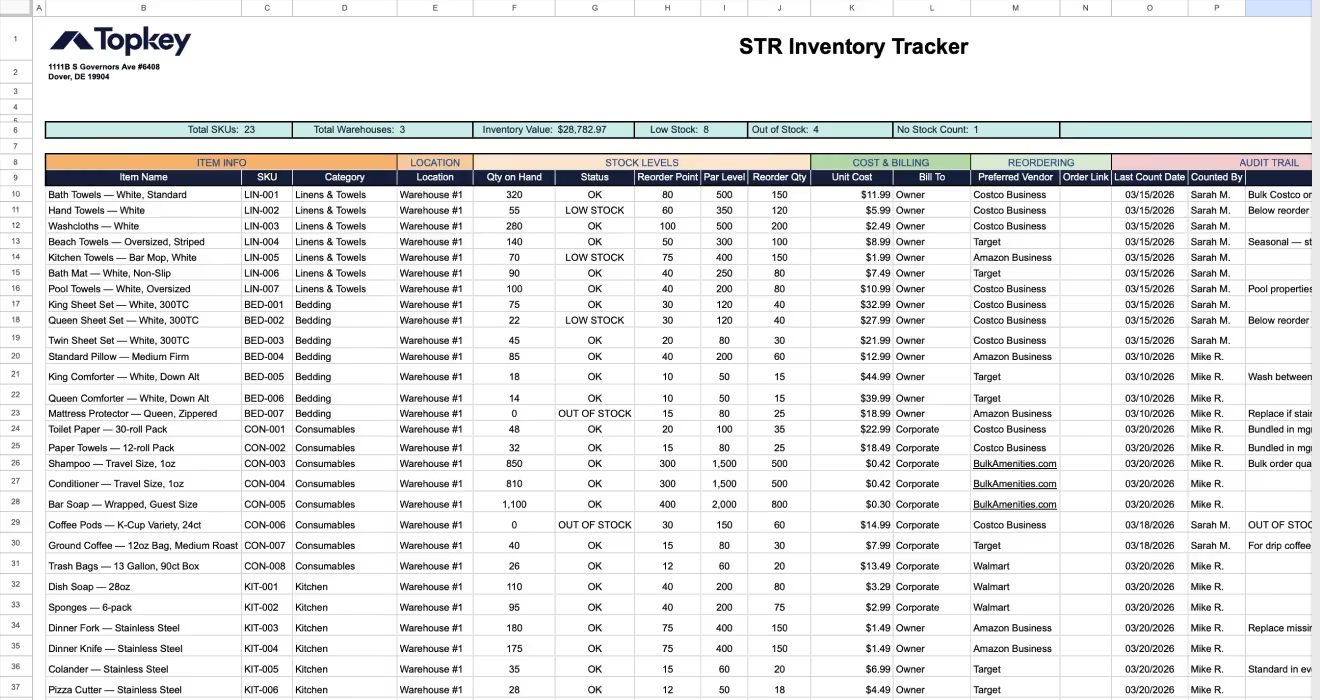
Most vacation rental managers track inventory in fragmented spreadsheets, Google Forms, or not at all. This leads to missed reorders, shrinkage, and charges that never make it to owner statements.
This template is built specifically for STR operators, based on conversations with property managers running 25 to 5,000+ units. It includes the categories, items, and tracking fields that STR businesses actually need.
To get started: Make a copy of this Google Sheet (File → Make a copy) and tailor it to your business.
Overview: What This Template Is Designed to Do
This Inventory Tracker provides a single-tab system for managing all physical inventory across your vacation rental operation — whether you have one warehouse or five, 50 SKUs or 1000+.
This template helps you:
- Track every item across multiple warehouse locations.
- Set reorder points and par levels so you never run out of critical supplies.
- Auto-calculate stock status (OK, LOW STOCK, OUT OF STOCK, OVERSTOCKED).
- Identify which items are billed to owners vs. absorbed as corporate costs.
- Maintain an audit trail of who counted what and when.
- Store preferred vendor and reorder links for fast restocking.
- Monitor total inventory value and low-stock alerts from the KPI summary bar.
To get started:
- Make a copy of this sheet (File → Make a copy).
- Delete the sample data rows.
- Edit the Reference Lists at the bottom of the sheet to match your categories, locations, and billing structure.
- Enter your items and do an initial physical count.
- Set Reorder Points and Par Levels based on your usage patterns.
What This Template Includes
A. Item Info: Item Name, SKU, Category
The first three columns identify what the item is. Item Name is the human-readable description (e.g., "Bath Towels: White, Standard"). SKU is an optional internal code. Category uses a dropdown, edit the reference list at the bottom of the sheet to match your business.
Your action items:
- Name items descriptively so anyone on your team can identify them (include color, size, spec).
- Use a consistent SKU naming convention (e.g., LIN-001, CON-002, ELC-003).
- Customize the category list to match how you segment inventory for owner statements.
B. Location: Warehouse / Storage Site
Tracks which physical location holds the stock. Most STR operators have 2–5 storage locations. Edit the reference list to match your actual locations.
Your action items:
- Name locations clearly (e.g., "Warehouse #1: Downtown", "Satellite: North Shore").
- If you have items split across locations, create a separate row for each location.
- Use "In Transit" for items ordered but not yet received.
C. Stock Levels: Qty on Hand, Status, Reorder Point, Par Level, Reorder Qty
This is the core of the tracker. Qty on Hand is your current physical count. Status auto-calculates, you never edit this column manually.
How Status works:
- OUT OF STOCK: Qty is 0 or less (red).
- LOW STOCK: Qty is at or below your Reorder Point (yellow).
- OK: Qty is between Reorder Point and Par Level (green).
- OVERSTOCKED: Qty is at or above Par Level (blue).
- NO COUNT: Item exists but Qty on Hand is blank (gray).
Key terms:
- Reorder Point = your floor. When stock hits this number, place an order.
- Par Level = your ceiling. The target stock level to maintain.
- Reorder Qty = how many units to order when restocking to get back to par.
Your action items:
- Do a physical count and enter Qty on Hand for every item.
- Set Reorder Points based on usage speed and vendor lead times.
- Set Par Levels based on peak season demand, adjust seasonally.
- Recount at least monthly; high-turnover items weekly.
D. Cost & Billing: Unit Cost, Bill To
Unit Cost is what you pay per unit (not what you charge). Bill To determines who absorbs the cost — Owner, Corporate, or HOA. This is critical because some items hit owner statements and some are absorbed as operating costs.
Your action items:
- Enter bulk/wholesale unit cost, not retail — this drives your Inventory Value KPI.
- Set Bill To for every item so your team knows what gets charged vs. absorbed.
- If you mark up inventory to owners, track that in your PMS, this sheet tracks cost only.
E. Reordering: Preferred Vendor, Order Link
Stores where you buy each item and a direct link for fast reordering. When a Low Stock alert triggers, anyone on your team can click the link and order immediately.
Your action items:
- List your actual vendor (Costco Business, Home Depot Pro, Amazon Business, Target, etc.).
- Paste the direct product URL in the Order Link column.
- If you have a backup vendor, note it in the Notes column.
F. Audit Trail: Last Count Date, Counted By
Tracks when the last physical count was done and who did it. This helps you measure inventory shrinkage and ensures counts are happening on schedule.
Your action items:
- Update these fields every time a physical count is performed.
- Count high-turnover consumables weekly; everything else at least monthly.
- Investigate shrinkage discrepancies over 5%.
G. KPI Summary Bar
The summary bar at the top auto-calculates six key metrics in real time:
- Total SKUs: number of unique items in the tracker.
- Total Warehouses: number of distinct storage locations in use.
- Inventory Value: total value of all stock on hand (Qty × Unit Cost).
- Low Stock: number of items at or below their Reorder Point.
- Out of Stock: number of items with zero quantity.
- No Count: number of items that exist but haven't been counted yet.
Use this bar as your daily dashboard. If Low Stock or Out of Stock counts are climbing, you're falling behind on reorders.
Customization Guidelines
This template is a starting point, customize it to match how your business actually operates.
Categories:
- Delete categories you don't use and add ones you do.
- If your operation is beach-heavy, you might add "Pool & Spa" or "Beach Gear."
- If you manage mountain cabins, maybe "Firewood & Heating" makes sense.
- The key is matching your categories to how you bill owners on statements.
Locations:
- Rename "Warehouse #1, #2, #3" to reflect your actual sites (e.g., "Main: Oak Street", "Satellite: Oceanfront", "Unit 14 Garage").
- Add or remove locations as needed.
Bill To options:
- If your billing structure has additional layers (e.g., "Damage Waiver", "Guest Add-On"), add those to the reference list so your team can tag items correctly.
Items:
- The 56 sample items are here to show you what a realistic inventory looks like for a 200-unit operation.
- Delete them all and enter your own.
- If you're just getting started, begin with your highest-turnover items (consumables, linens, light bulbs) and expand from there.
Thresholds:
- Reorder Points and Par Levels should reflect your operation's size and seasonality.
- A 50-unit company in a single market will have very different thresholds than a 500-unit company spread across multiple states.
- Start conservative, then adjust after 2–3 months of real usage data.
Seasonal adjustments:
- Many operators increase Par Levels heading into peak season (summer for beach markets, winter for ski markets).
- Review and update thresholds quarterly, or at minimum before and after your high season.
Summary / Recommended Use
Daily:
- Glance at the KPI Summary Bar. If Low Stock or Out of Stock counts are rising, prioritize reorders.
At every turnover:
- Cleaners or field staff should flag missing or damaged items.
- Update Qty on Hand as items are checked out of the warehouse.
Weekly:
- Review LOW STOCK items and place reorders.
- Check that high-turnover consumables (toilet paper, soaps, coffee) are above their Reorder Points.
Monthly:
- Do a full physical count of all warehouse locations.
- Update the Last Count Date and Counted By columns.
- Compare your physical count to what the sheet says, any gap is shrinkage.
- Investigate discrepancies over 5%.
Quarterly:
- Review and adjust Reorder Points and Par Levels based on actual usage.
- Update Unit Cost if vendor pricing has changed.
- Add new SKUs for any items you've started stocking.
Before peak season:
- Increase Par Levels for high-demand items.
- Pre-order bulk consumables and linens 4–6 weeks ahead.
- Confirm vendor accounts and pricing are current.
Questions or Need Help?
If you need support or want help automating this process, email: info@topkey.io.