
How to Build a Monthly Spend Report for Each Property in Topkey
Build a monthly spend report for each property in Topkey. Filter card charges, bills and inventory once, save the views and export a file your owner or accountant can read.
- Published
- Product area
- Platform
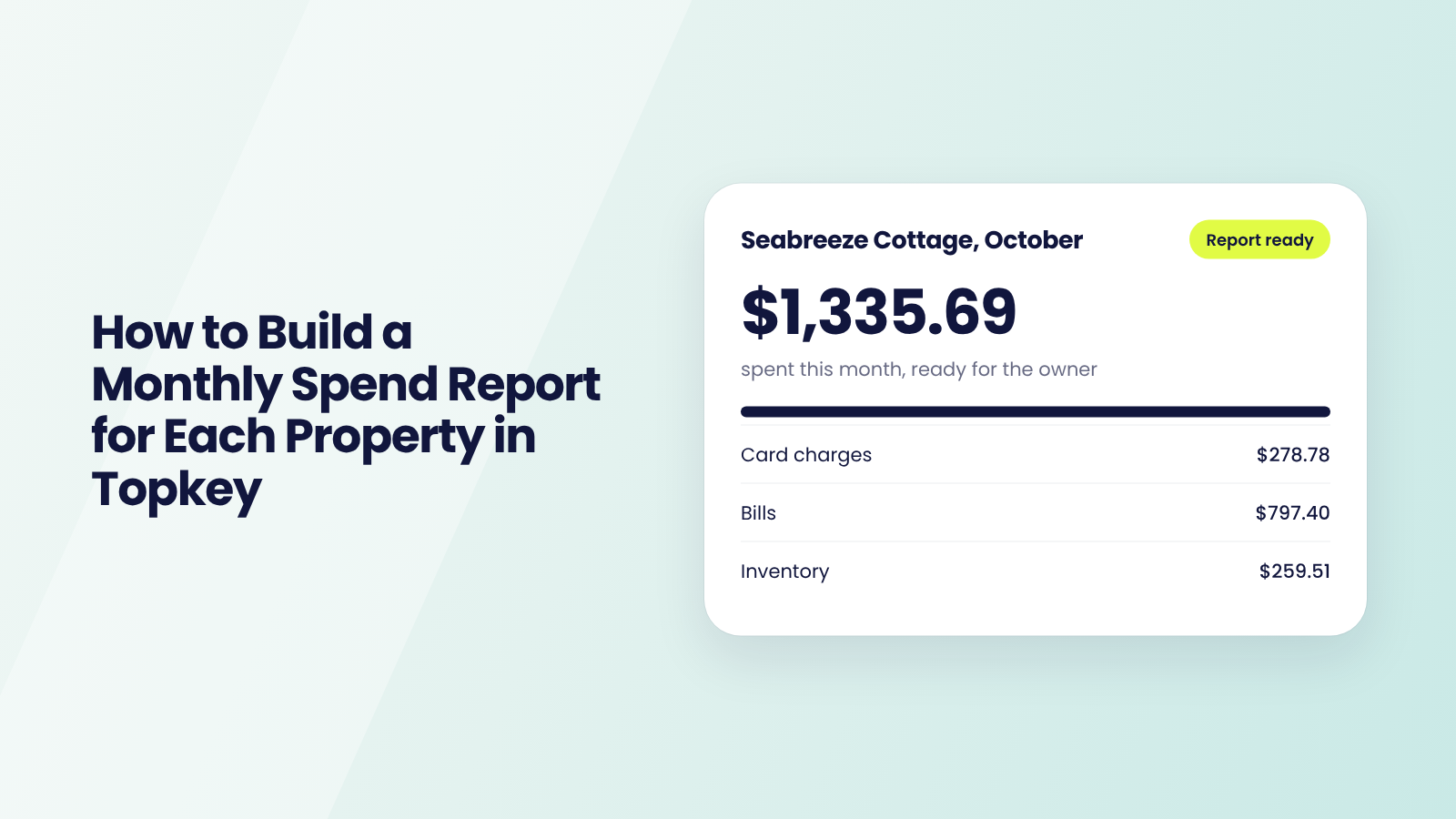
An Owner Wants the Full Picture
An owner calls before renewing their management agreement. They want to see everything spent on their house this year, card charges, bills and supplies.
It's all in Topkey. But card charges, bills and inventory each live on their own page, and nobody has pulled all three for one property before. Until someone does, the owner waits, and an owner who waits starts to wonder.
Ryan Casey, CTO of Lighthouse Vacation Rentals, a 150-unit property manager on Track, knows what's at stake when that answer comes late. "Going back to a homeowner 11 months later with a $4,000 refrigerator bill just isn't professional."
This guide shows how to build a monthly spend report for each property in Topkey. You filter three pages once and save each view, so every month after that it's a click.
Where Property Spend Lives in Topkey
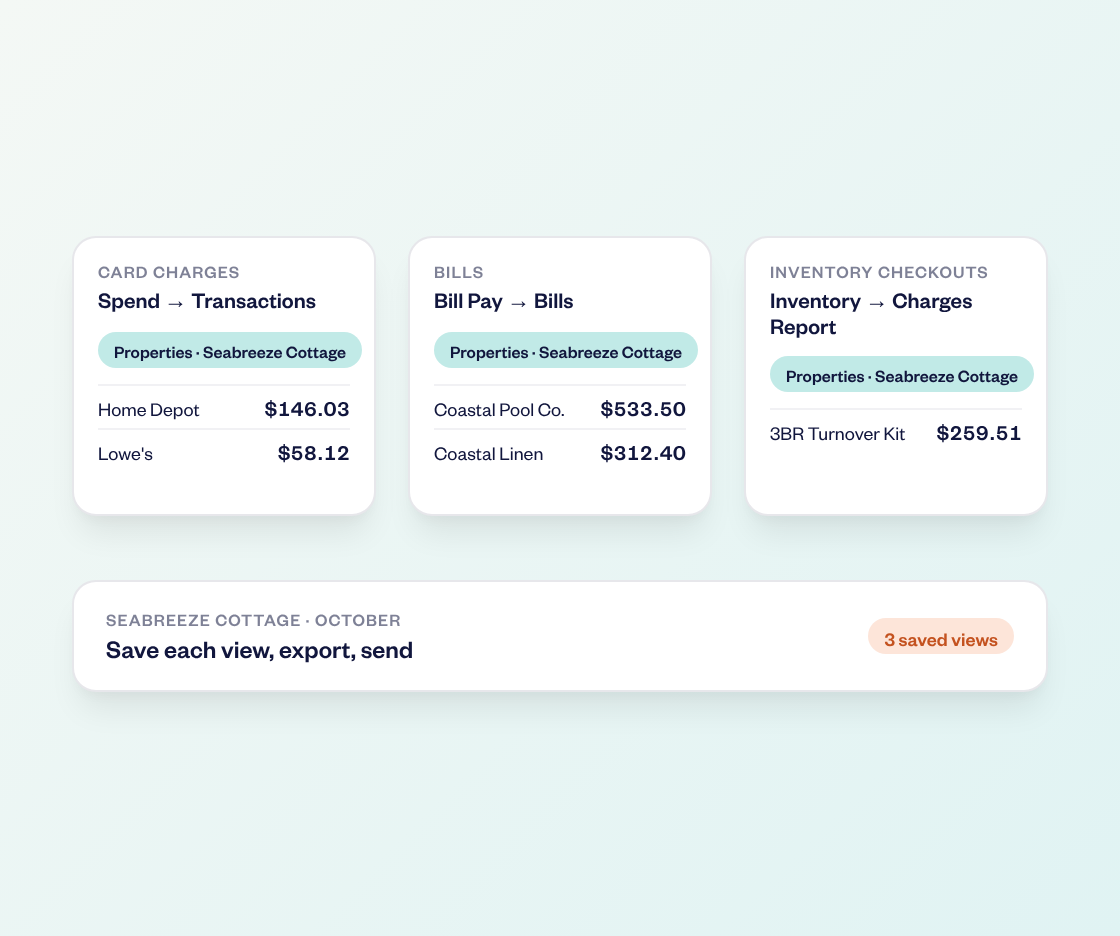
Topkey doesn't have one screen that shows card charges, bills and inventory together. Each lives on its own page, and each one can be filtered to a property.
- Card charges are on Spend → Transactions.
- Bills are on Bill Pay → Bills.
- Inventory checkouts are on Inventory → Charges Report.
Card Charges for One Property
Filter by Property and Date
- Go to Spend → Transactions. The page is titled Card Transactions.
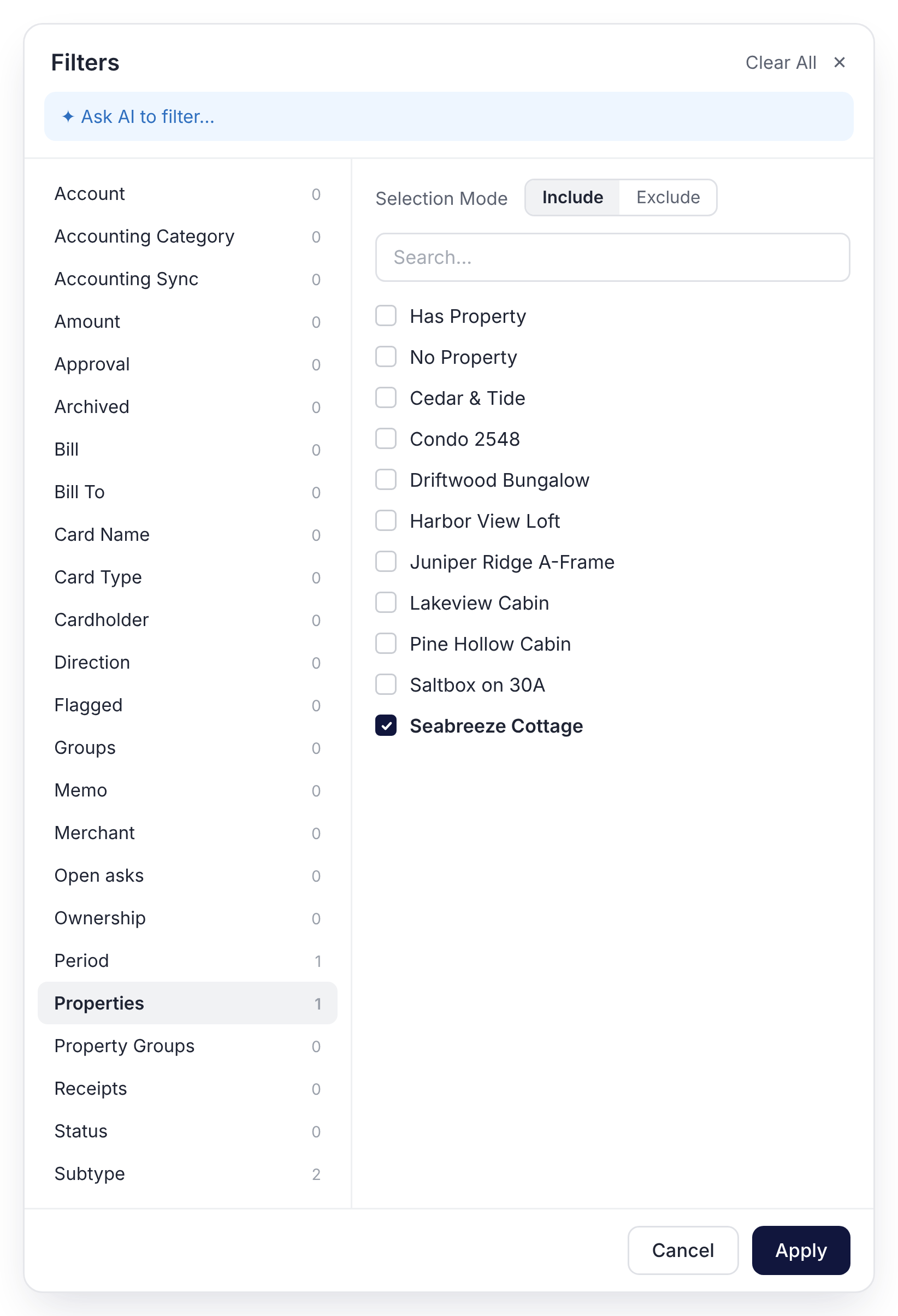
- Open the Properties filter and check the property. You can check more than one.
- Set the date range.
- If the owner only pays for some charges, set Bill To to Bill to Owner.
Charges on archived or closed cards still show, so nothing drops off when a card is retired.
Save It as a Custom View
Click Save Search and name it for the property, such as Lakeview Cabin Owner Charges. That saves it as a custom view. Next month, open the view and change the dates.
For more, see our guide on how to save time with custom views.
Bills for One Property
- Go to Bill Pay → Bills.
- Open the Properties filter, check the property and set the dates.
- If you only want owner-billed bills, set Bill/Assign To to Bill to Owner.
- Click Save Search to save it as a custom view.
Inventory for One Property
- Go to Inventory → Charges Report.
- Click Filters, choose the property under Property and click Apply.
Total charges at the top is what was checked out to that property in the date range.
Export a File Your Owner or Accountant Can Read
Each export keeps whatever filters or saved view you have open, so the file matches what's on your screen.
- Card charges. Click Actions → Exports and choose CSV (same-row splits) or CSV (separate-row splits). It downloads in Topkey when it's ready.
- Bills. Click Actions and choose Download CSV (same row) or Download CSV (separate rows). Topkey emails it to you.
- Inventory. Click Export CSV. It downloads right away, with Unit Cost, Charged Price and Line Total for each item.
Reports Worth Knowing
A few reports on the Reports page can also be filtered by property.
Owner Billable Expenses shows what's been marked to bill owners, which is usually the owner's real question. Export it and Topkey emails the file.
Work Orders and Spend by GL Code can each be filtered by property or property group. Bills Aging shows a property's unpaid bills by how overdue they are.
Five Rules for Property Spend Reports
1. Save One View per Property You Report On
Why it matters. Rebuilding filters every month is where the time goes.
Do this. Click Save Search on each property's filters, so every property or owner who asks has a saved view.
2. Filter by Date Before You Export
Why it matters. A full-year export buries the month the owner asked about.
Do this. Set the date range first, then export.
3. Use Bill to Owner When the Owner Asks What They Owe
Why it matters. Not every charge on a property is the owner's to pay.
Do this. Set Bill To to Bill to Owner for the owner's version.
4. Check for Charges with No Property Before You Send
Why it matters. A charge with no property is missing from every property's report.
Do this. In the Properties filter, choose No Property and fix those first.
5. Group an Owner's Properties
Why it matters. There's no owner filter, and owners with several houses want one answer.
Do this. Put each owner's properties in a property group, then filter by Property Groups.
A Monthly Routine per Owner
Once the views are saved, the monthly routine is short.
- Check No Property and fix anything missing a property.
- Open the property's saved views and change the dates.
- Export card charges, bills and inventory.
- Send.
Your Owner’s Question, Already Answered
Picture the same owner call. You open the saved views, export and send the file the same day.
Josh Hatter, Founder and CEO of Curated Vacation Properties, a 130-unit property manager on Guesty, describes where that visibility leads. "Topkey gives us the visibility to look at every line item, every invoice, every contract and actually do something about it."
If you use Topkey, save your first property view today. If you don't yet, see how Topkey handles expense management.
FAQ
Not on one screen. Filter each page by the property and save the view, and each one is a click next month.
You can check several properties or property groups. There's no owner filter, so group each owner's properties.
Yes. Charges on archived or closed cards still show when you filter by property.
Bills exports are emailed when they're ready. Card charge and inventory exports download in Topkey.
Yes. Open the view and export. The file uses the view's filters.
Owner Billable Expenses, filtered by property.