
How to Mark Up Owner Charges in Topkey
Billing owners at cost by accident? See how property managers set markups once in Topkey so every owner charge carries the right margin.
- Published
- Product area
- Work Orders & Markups
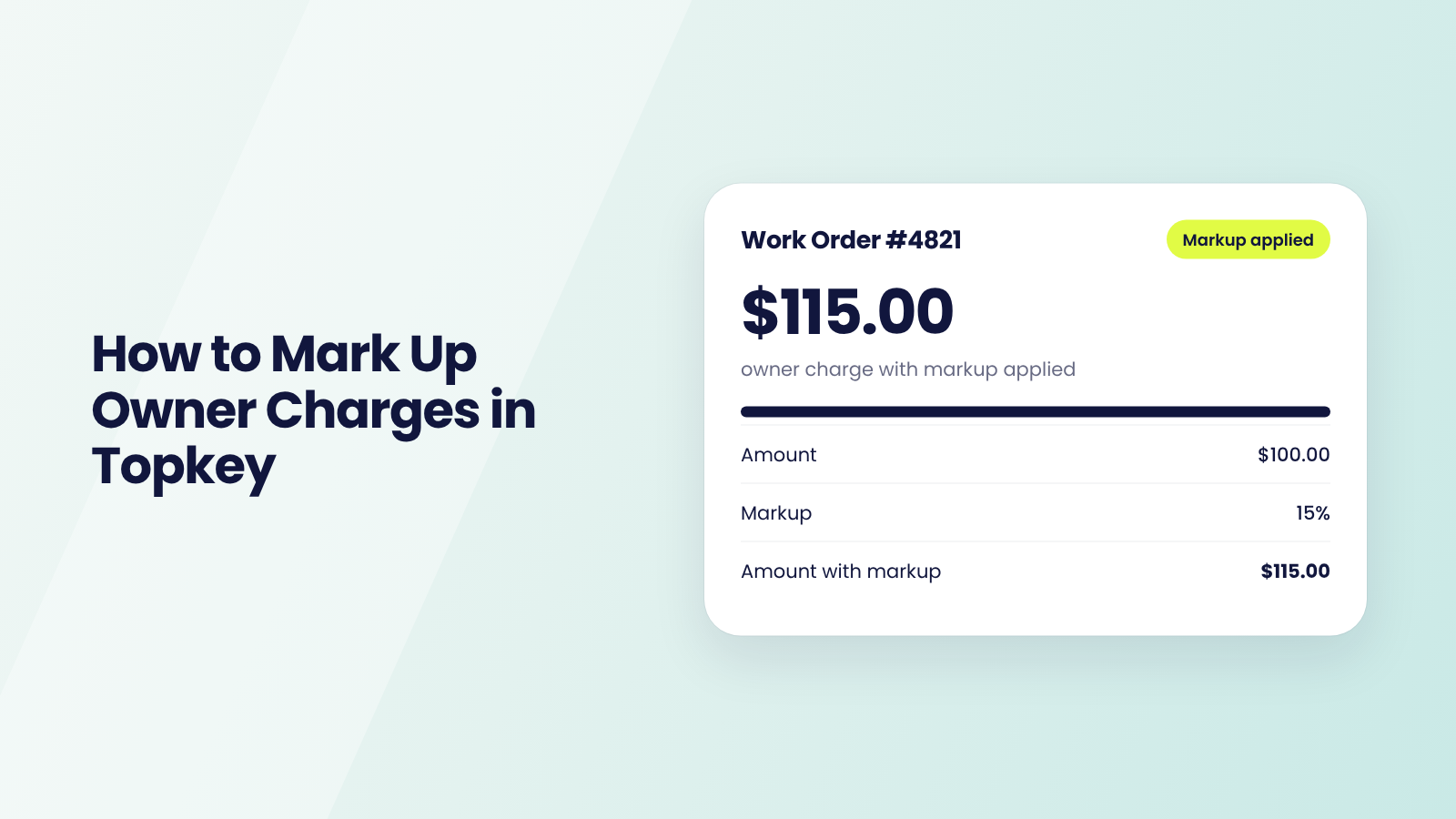
Billing Owners at Cost Without Meaning To
A tech runs to the hardware store for a part, fixes the faucet and drops the receipt in the truck. The charge goes to the owner at exactly what it cost. The markup your management agreement allows never shows up on the statement.
It happens again on the next supply run, and on the vendor invoice after that. Nobody decided to give the margin away. Someone just had to remember to type a percentage, every time, and sometimes they didn't.
The fix isn't remembering harder. It's setting the markup once, in the right place, so it lands on every owner charge without anyone typing it.
Terry Sundling, Partner and Field Engineer Manager at Hilton Head Properties Realty & Rental (132 units on Streamline), sees why that matters. "Topkey lets us see our margins clearly before posting into Streamline." When the margin is visible before anything posts, far fewer charges slip through at cost.
This guide shows where an owner charge markup comes from in Topkey, which one wins when more than one applies, and how markups reach Guesty, Streamline, Track, Hostaway, Hostfully, OwnerRez and Breezeway.
Where Markups Come From in Topkey
The Five Places a Markup Can Live
Each place covers a different set of owner charges.
- A property markup covers everything for one property.
- A per-GL code override on a property covers one kind of spend there, such as supplies.
- A merchant markup covers everything bought from one store, like Amazon or The Home Depot.
- A Work Order Assignment Rule covers work orders that match a rule you define.
- Your account default covers everything else.
You may only need one or two. A single account default can cover a simple portfolio, and property markups fit when management agreements differ by owner.
Which Markup Wins
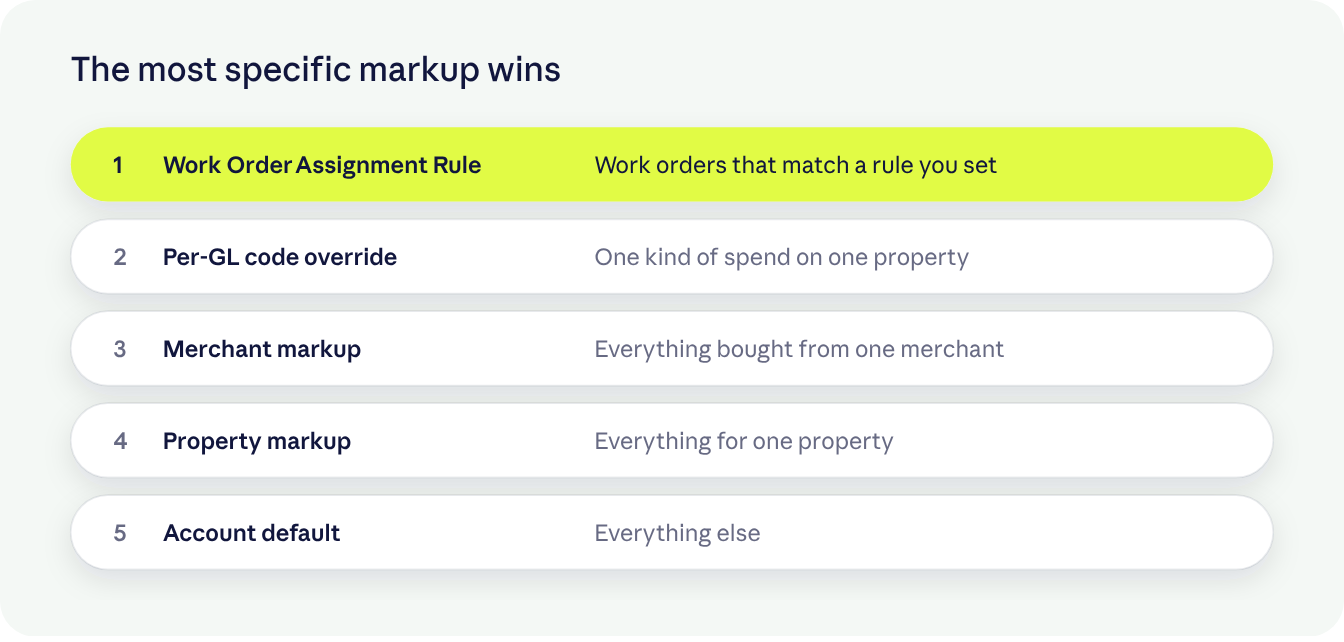
When more than one markup could apply, Topkey uses the most specific one, in this order.
- A Work Order Assignment Rule markup.
- A per-GL code markup override on the property.
- A merchant markup.
- A property markup.
- Your account default.
A markup you type on a single line stays on that line, with one exception. If a property has Ignore existing markup on property change turned on, changing a work order's property resets merchant or manual markups on it to 0.
Setting Your Markups Once
Property Markups and GL Code Overrides
Go to Portfolio → Properties, edit a property and open Work Order settings. The field is Work Order Markup (%). Leave it empty to use your account default, or enter 0 to bill that property at cost on purpose.
If your account has them, Per GL Code Markup Overrides let one property use a different markup for a specific GL code, such as supplies versus repairs.
Merchant Markups
Go to Settings → Merchants, under Billing & Documents. Click a merchant to edit it and set Markup Percentage (%).
The markup applies to work orders created from that merchant's charges. Setting 15% on Amazon, for example, means every Amazon supply order billed to an owner carries 15% without anyone typing it.
Enter 0 to bill that merchant at cost, or leave it blank to fall back to the property or account markup.
Vendor Markups with Assignment Rules
Work Order Assignment Rules live on your PMS or Breezeway connection page, where available. A rule can assign a vendor and set a Markup % that overrides every other markup on matching work orders.
Rules can match by property group, department, tags, templates, assignees or source. They take a percentage, not a dollar amount.
Your Account Default
Your account default is set by Topkey, so ask your CS rep to set or change it. It applies going forward. Work orders that already have a markup keep it, so a new default won't rewrite last month's charges.
Changing the Work Order Markup on One Line
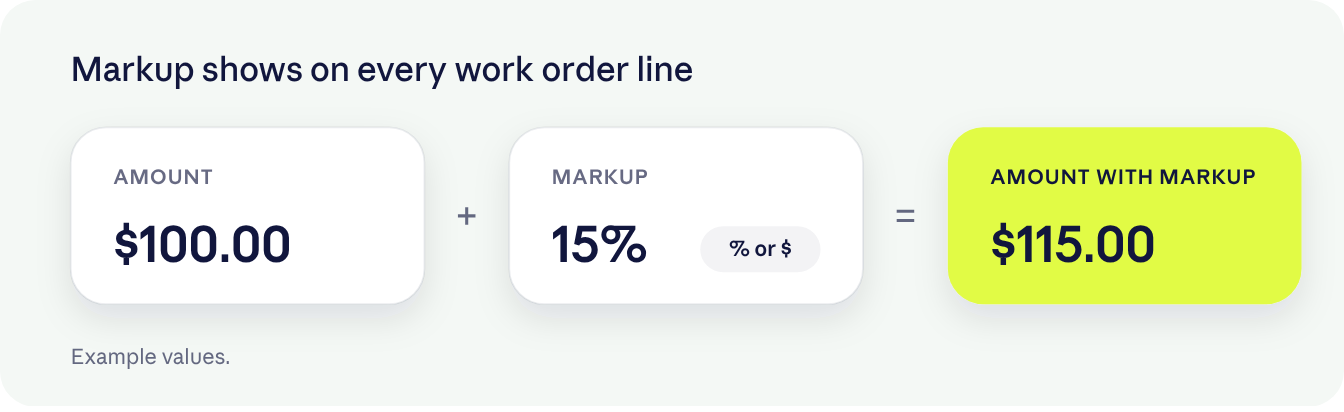
Every work order line shows three fields.
- Amount is what the purchase cost.
- Markup is what you add on top. Use the % toggle for a percentage or the $ toggle for a flat dollar amount.
- Amount with Markup is what the owner is billed. Edit it and Topkey recalculates the markup for you.
To remove a markup, set it to 0. Don't just clear the field. On a work order that hasn't synced yet, a blank field can pick the default markup back up.
Merging line items is safe. When lines share the same percentage, the merged line keeps it. When they differ, Topkey converts the result to the equivalent dollar amount, so the total markup doesn't change.
How Markups Reach Your PMS
Guesty, Hostaway, Hostfully, OwnerRez and Track
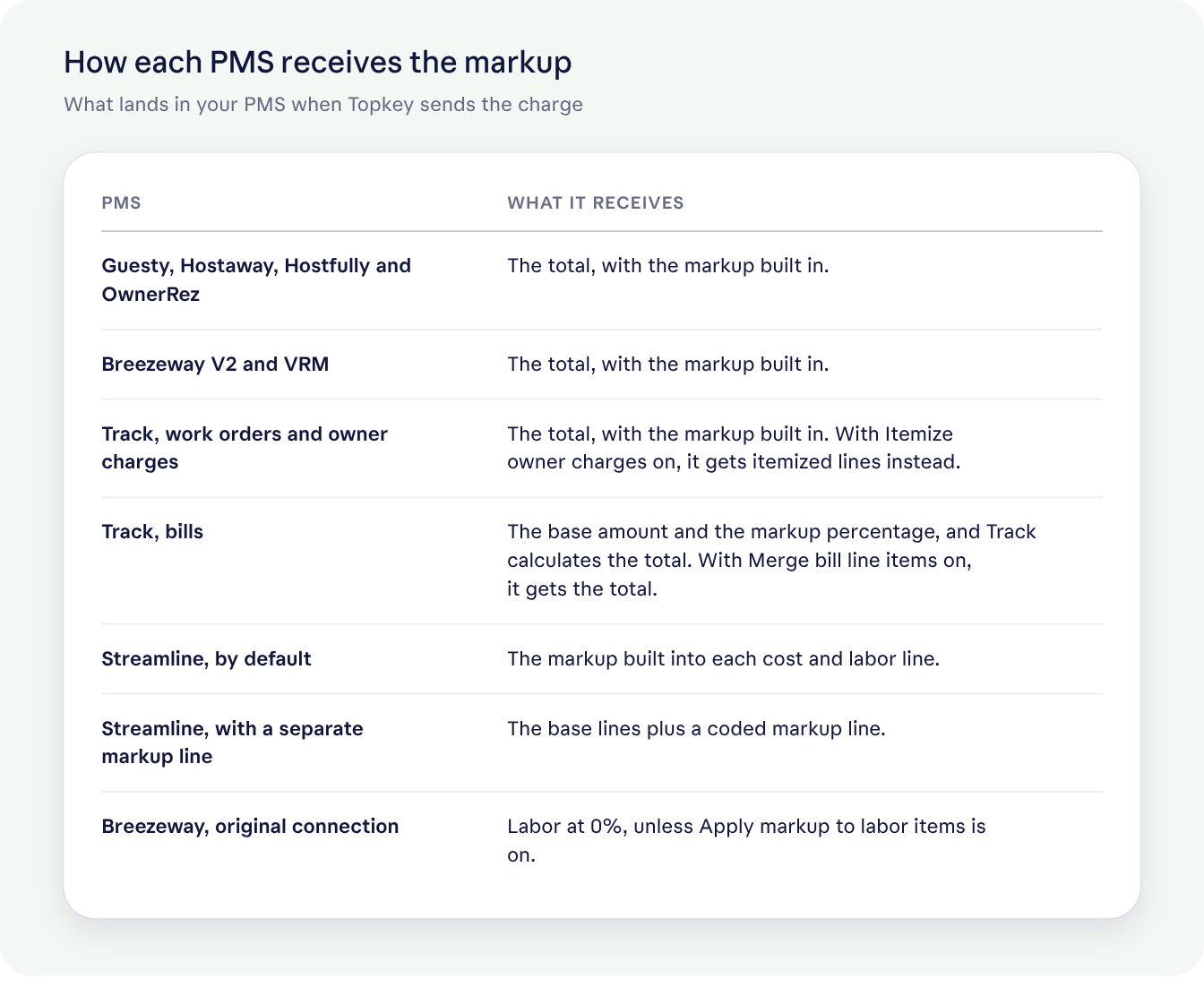
Most PMS integrations receive the total with the markup already built in. That's true for Guesty, Hostaway, Hostfully, OwnerRez, Breezeway V2 and VRM. Track and Streamline depend on your settings.
Steve Resnick, Co-Founder and CEO of HeavenlyRez (44 units on OwnerRez), describes how simple that is day to day. "What I love is how easy Topkey makes markups. I apply the owner markup right on the expense and push it into OwnerRez with one click." The markup travels with the charge, so the owner statement matches what you billed.
Streamline, Track and Breezeway Settings
Streamline gives you a choice. With Sync markup as its own coded line item off, which is the default, the markup is built into each cost and labor line. Turn it on to send the base lines plus a separate markup line, coded with the Transaction type for markup line items you choose. Choose this if your owners already expect to see the markup as its own line.
On Track, the Itemize owner charges setting is off by default. Turn it on in your Track settings under Work Orders, and pick the accounting items for the markup and labor lines. Owner charges then arrive the way owners see hand-entered work orders.
- Parts at cost.
- The markup in dollars, on its own line.
- Anything marked Labor, as a separate owner charge.
Choose this if your Track owner statements already itemize markup and labor.
On the original Breezeway connection, Apply markup to labor items is off by default, so plain labor lines import at 0%. Turn it on if your labor carries the same markup as parts.
Marking Up Card Purchases and Bills
Card purchases billed to an owner get their markup when they become a work order. Go to Spend → Transactions, filter to the Bill to Owner category, and use Create in the Work Order column. The merchant, property or account markup applies as the work order is created.
Bills carry their own markup on each line, as a percentage or a dollar amount. Change a bill line's markup and Topkey updates the linked owner charge too, unless that charge has already been posted, sent, merged or locked. In that case you'll see a warning instead.
Five Rules for Every Markup
1. Use the Fewest Places That Cover Your Agreements
Why it matters. Every place a markup lives is one more place to check when a charge looks wrong.
Do this. Start with your account default. Add property markups only where a management agreement differs.
2. Enter 0, Not Blank, to Bill at Cost
Why it matters. A blank field falls back to the next markup in line, and on a work order that hasn't synced, it can pick the default back up.
Do this. Enter 0 on the property, merchant or line you want billed at cost.
3. Put Supply Markups on the Merchant
Why it matters. A merchant markup applies to every work order created from that merchant's charges, so your team never types it.
Do this. In Settings → Merchants, set Markup Percentage (%) on the stores your team buys supplies from most.
4. Save Assignment Rules for Work That Always Gets Its Own Rate
Why it matters. A rule's markup overrides every other markup on matching work orders.
Do this. Use a Work Order Assignment Rule only when matching work should carry its own percentage every time.
5. Check Your PMS Settings Before the First Push
Why it matters. Each PMS receives the markup a little differently, and three settings change what owners see.
Do this. Decide on these three settings before your first push.
- On Streamline, Sync markup as its own coded line item.
- On Track, Itemize owner charges.
- On the original Breezeway connection, Apply markup to labor items.
Spot Your Next Markup
A few signs point to the next markup to set.
- Charges from one store keep going out at cost? Set a merchant markup.
- One owner's agreement is different? Set a property markup.
- Supplies and repairs need different rates on one property? Use a per-GL code override, if your account has them.
- Labor from Breezeway importing at 0%? Turn on Apply markup to labor items.
Keep Your Markups Working
- When a management agreement changes, update that property's Work Order Markup (%).
- When your standard rate changes, ask your CS rep to change your account default. It applies going forward.
- Before you push to your PMS, check Amount with Markup on a few lines.
- When your team starts buying from a new store, set its merchant markup.
What It Looks Like Once It's Set
A tech buys supplies for a turnover, taps the text from Topkey, snaps the receipt, picks Bill to owner and the work order. In the office, the owner charge is already priced. Nobody looks up a percentage. The office pushes it to the PMS and it lands on the statement with the margin on it.
Ashley Timber, Co-Owner of Stay on 30a, describes the difference. "Now with Topkey, we get the true transaction cost, the automated markup is applied, and it codes back into Streamline showing exactly what our margin was on that work order." That's the real win. The cost is real, the markup is consistent, and the margin is visible job by job.
Decide with your CPA whether the markup is booked as income or netted against the expense, and keep it consistent.
Markups FAQ
Yes, on a single work order or bill line. Property, merchant and rule markups are percentages.
Defaults apply going forward. Charges that already have a markup keep it.
Yes. In Streamline, turn on Sync markup as its own coded line item in your connection settings. In Track, turn on Itemize owner charges.
Markup rules need the Bill Pay permission, which the standard Cardholder role doesn't have. Techs submit the purchase, and the markup is applied when it becomes a work order.
The most specific one wins, starting with a Work Order Assignment Rule, then a per-GL code override, then a merchant markup, then a property markup, then your account default.
Enter 0 in that property's Work Order Markup (%). Leaving it empty uses your account default.
Yes, unless the owner charge has already been posted, sent, merged or locked. Then you'll see a warning instead.
Every Owner Charge, Priced Right
Set your markups once and the margin shows up on every owner charge, from the hardware store run to the plumber's invoice. Your team stops typing percentages, and your owners see consistent pricing.
See how Topkey handles work orders and markups. Already a customer? Ask your Topkey CS rep to set your account default.