
How to Set Up GL Codes and Categories In Topkey So Charges Land in the Right Account
Map properties to classes, point categories at GL codes and limit GL codes by role, so every charge lands in the right account in your books.
- Published
- Product area
- Accounting
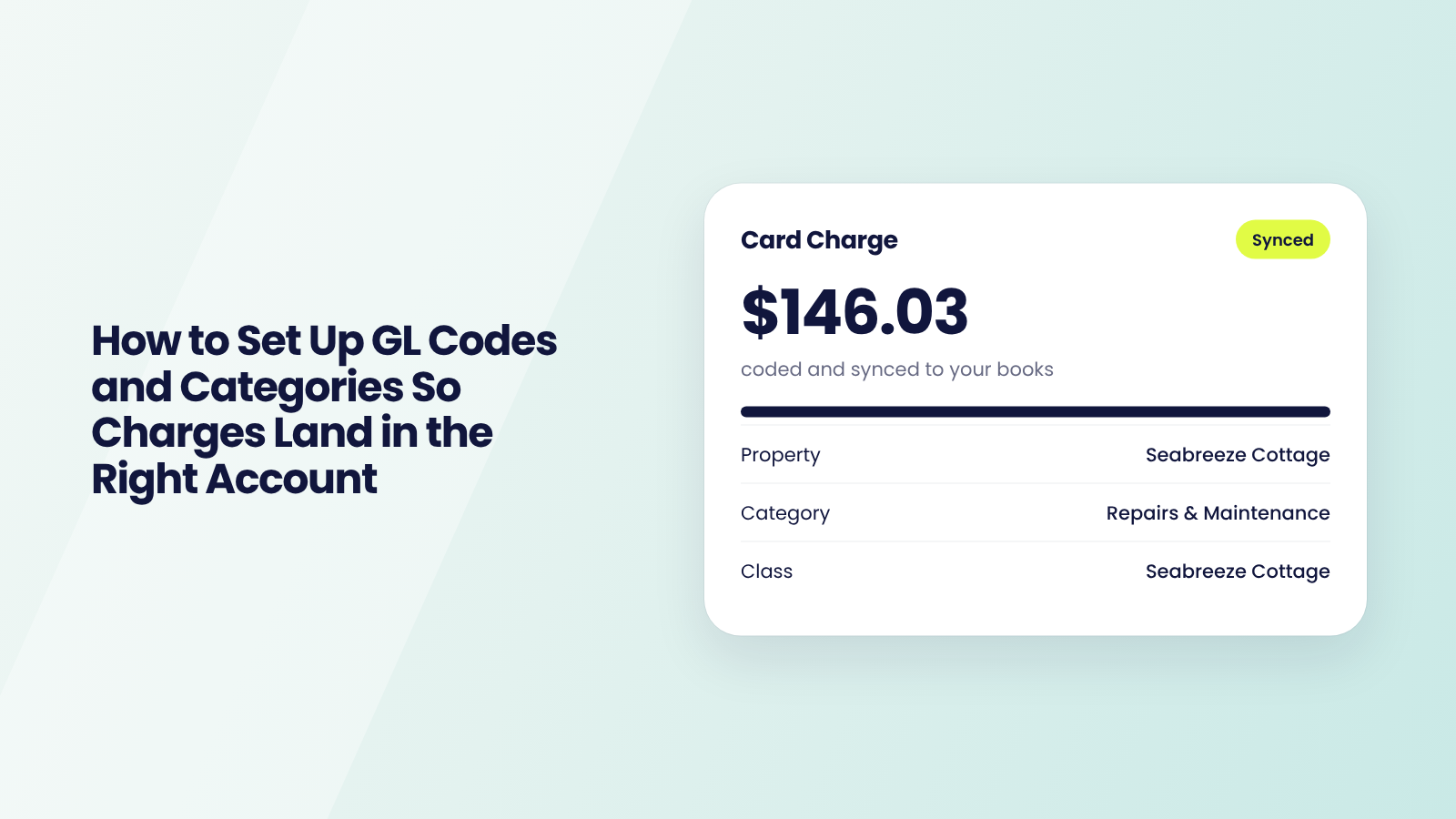
The Charges Are in QuickBooks, but Which Property?
A month of card charges and bills just synced to QuickBooks Online. The totals are right, but none of them has a property attached.
The owner statements can't be built from them, so someone spends the afternoon recoding by hand. That almost always traces back to setup, not to the person coding charges.
This guide walks through GL code mapping in Topkey, start to finish, so charges land in the right account and the right property. Do it once, ideally before your first sync.
How Topkey Decides Where a Charge Lands
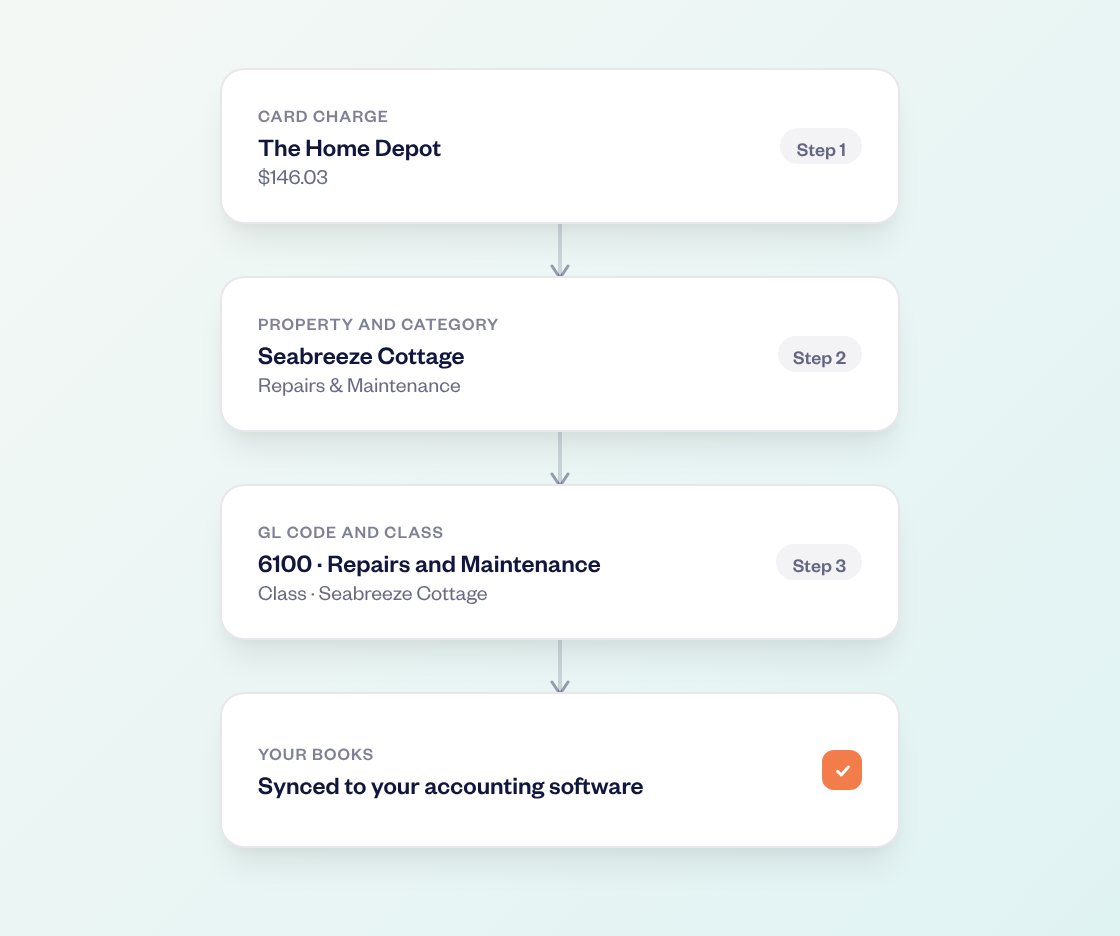
Two choices on every card charge decide where it goes in your books, the property and the category.
The property sets the class, or the location and department, from the mapping you give that property. The category, such as Bill to Owner, decides who pays and which GL code fits.
Topkey then fills in the GL code in this order.
- A merchant rule fills in anything still blank.
- If the category is Bill to Owner, its GL code is applied.
- GL Code Rules apply, with property plus category first, then property only, then category only.
- If the GL code is still blank, Topkey suggests one for someone to accept.
The upshot is simple. Set the mappings once, and whoever codes a charge only has to pick the property and category.
Jed Stevens, General Manager and Co-Founder of Koloa Kai, a 41-unit property manager on LiveRez, describes what that looks like. "I categorize the expense by property and which of the accounts in QuickBooks it belongs to. Then I hit 'Sync', and it goes to QuickBooks, and I don't have to touch it again."
Bills work a little differently. The vendor's default GL code fills the bill and any blank line items.
Set Up GL Codes and Categories in Five Steps
Step 1. Bring In Your Chart of Accounts
Topkey pulls your chart of accounts from your accounting software.
- In Settings, open Chart of Accounts.
- Review the list.
- Use the Active switch to turn off accounts your team doesn't use.
Fewer accounts means fewer wrong picks.
Step 2. Map Properties to Classes
Each property needs its class, or its location and department, from your accounting software. Without it, charges reach your books with no property, and owner statements can't be built from them.
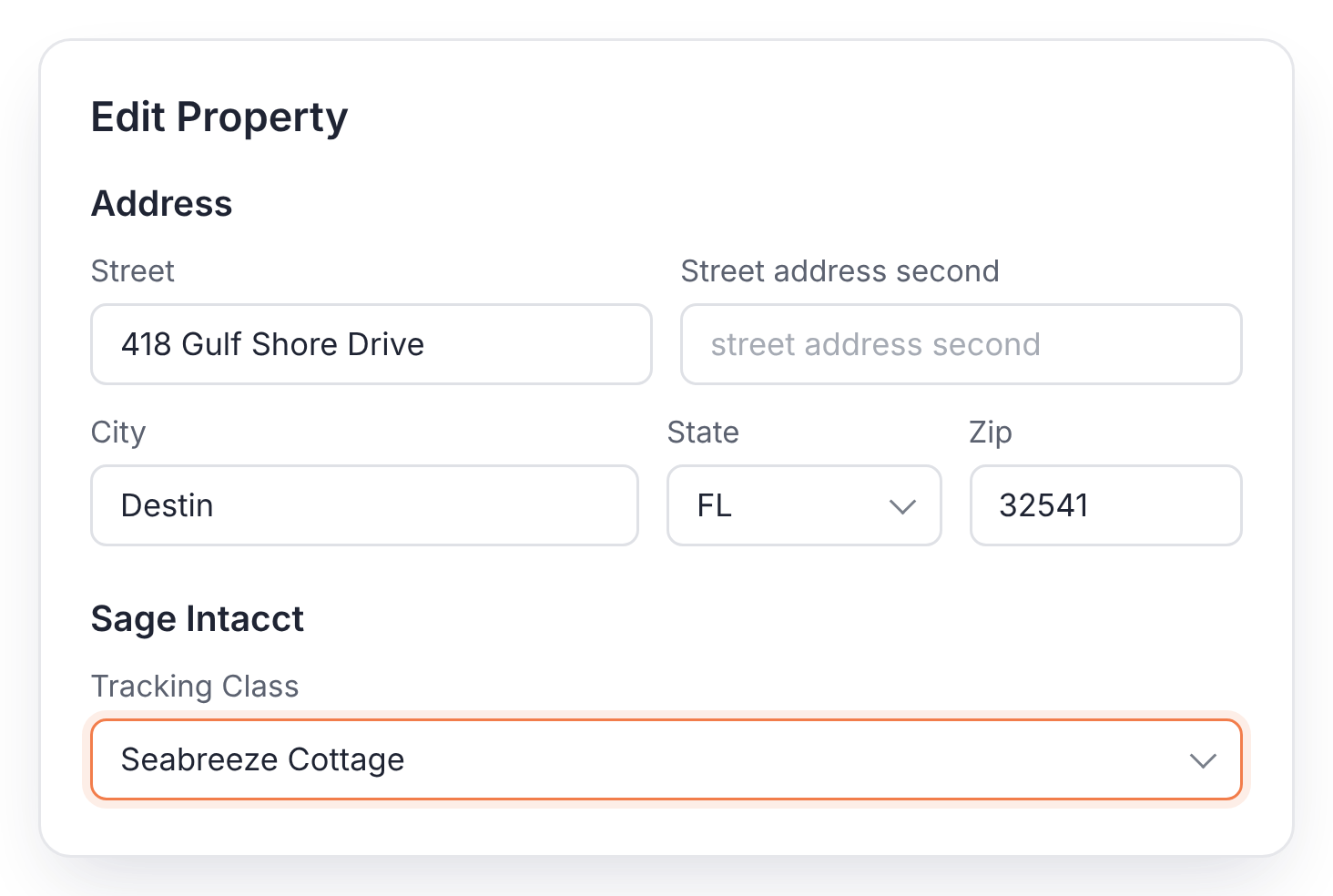
- Go to Portfolio → Properties and click the edit icon on a property.
- Find the section named for your accounting software.
- Choose the class under Tracking Class.
- Save.
The fields in that section depend on your accounting software and how it's set up. With QuickBooks Online you may see Accounting Location. With Oracle NetSuite, Sage Intacct or Xero you may see Accounting Department, and NetSuite and Sage Intacct add Location. Tracking Class and Accounting Category can show for any of them.
Map Many Properties at Once
With dozens of properties, use the import instead.
- On Portfolio → Properties, open the gear menu and choose Import Accounting Mappings.
- Click Download CSV template.
- Fill in the Class, Location or Department column for each property. A blank cell keeps what's already there.
- Upload the file, click Import, review the Import Preview, then click Confirm Import.
The import only updates properties you already have. It doesn't create new ones.
Step 3. Point Each Category at a GL Code
Categories are what your team picks. GL codes are where they post.
- In Settings, open Category & GL Rules.
- Check that each category points to the right GL code, and set the GL code for Bill to Owner.
- Turn off categories nobody uses.
Keep categories to what your team actually buys, such as cleaning supplies, repairs and maintenance, and linens.
Step 4. Add GL Code Rules for Exceptions
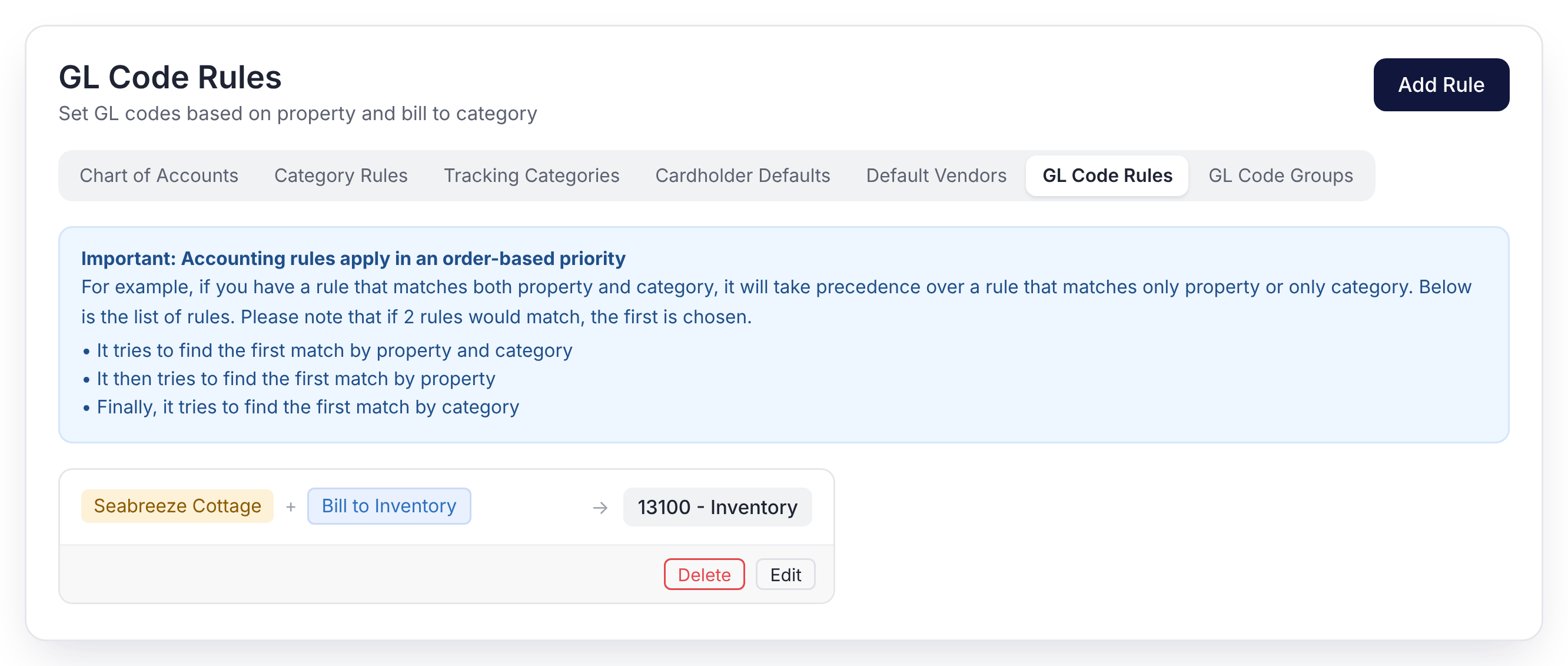
Some properties need a different account for the same category than the rest of your portfolio.
In Settings, open Category & GL Rules, go to the GL Code Rules tab and click Add Rule for that property and category. A rule for a property and category wins over a rule for just one of them.
For rules by vendor, see our guide on how to automate expense categorization with merchant rules.
Jill Daignault, Account Manager at Thuro Accounting, which keeps the books for Colby & Conrad, a 30-unit property manager on Guesty, sees the payoff. "Once we set rules for vendors, it automatically applies the right accounting category. It saves a ton of manual work."
Step 5. Limit GL Codes by Role
Field staff don't need to see every GL code, and a long list is how the wrong one gets picked.
- In Settings, open GL Code Groups.
- Create a group with the GL codes a team should see.
- Assign it to a role, user, cardholder, property group or group.
If someone belongs to more than one group, they see the GL codes from all of them. Anyone with no group sees every active GL code.
Cardholders filling in the text message form pick a category, not a GL code. GL code groups matter most for people coding in the web app.
Let Topkey Suggest GL Codes
When a card charge gets through all those steps with no GL code, Topkey suggests one. On Spend → Transactions, it shows in the Accounting category column as an amber pill with a sparkle icon and a confidence score, such as 97%.
Hover to accept or dismiss it, or to see Why this category. Nothing changes until someone accepts.
Suggestions are on by default. An admin can turn them off under Settings → Transaction Settings → AI Automations.
Five Rules for Clean GL Coding
1. Map Properties Before the First Sync
Why it matters. Charges synced without a class have to be fixed one by one in your books.
Do this. Map every property to its class before you click Sync for the first time.
2. Keep Categories Few and Clear
Why it matters. The more categories there are, the more often someone picks the wrong one.
Do this. Turn off categories nobody uses.
3. Use Rules for Exceptions, Not for Everything
Why it matters. Too many rules make it hard to tell why a charge landed where it did.
Do this. Let the category set the GL code, and add a rule only when one property is different.
4. Give Each Role Only the GL Codes It Needs
Why it matters. Someone scrolling a long list of GL codes will pick the wrong one eventually.
Do this. Set up a GL code group for each team that codes in the web app.
5. Re-Sync the Chart of Accounts After You Change It
Why it matters. Accounts you add or turn off in your books don't change in Topkey until you re-sync.
Do this. Go to Settings → Integrations and click Manage next to your accounting software. Under Re-sync from Accounting Software, choose Chart of accounts and click Initiate Re-sync. Then check the list. Inactive accounts are hidden, and they come back only if they're active again in your accounting software.
Keep It Right as You Grow
Two moments undo good setup. When you add a property, map its class the same day. When your chart of accounts changes, re-sync it and check what changed.
If charges start failing after a change, see how to fix failed accounting syncs.
Charges That Land Where They Belong
Picture month-end with every charge in QuickBooks Online under the right account and property. The owner statements build from them, and nobody recodes anything.
If you use Topkey, open Category & GL Rules today and check that every category points to a GL code. If you don't yet, see how Topkey works with QuickBooks Online.
Frequently Asked Questions
A category is what your team picks, such as Bill to Owner or cleaning supplies. A GL code is the account in your books it posts to.
On Portfolio → Properties, open the gear menu and choose Import Accounting Mappings, then fill in the CSV template.
Not on the text message form. They pick a category, and the GL code follows from your rules.
A rule for a property and category wins over a rule for just the property, which wins over a rule for just the category.
Yes. Charges with no GL code get a suggestion you can accept or dismiss. Nothing changes until you accept.
They're hidden in Topkey. If you make one active again in your accounting software, it comes back on the next re-sync.