
How to Pay Property Owners from Topkey
Still paying owners by check or bank portal? See how property managers send owner payouts by ACH from Topkey, one at a time or in bulk.
- Published
- Product area
- Bill Pay
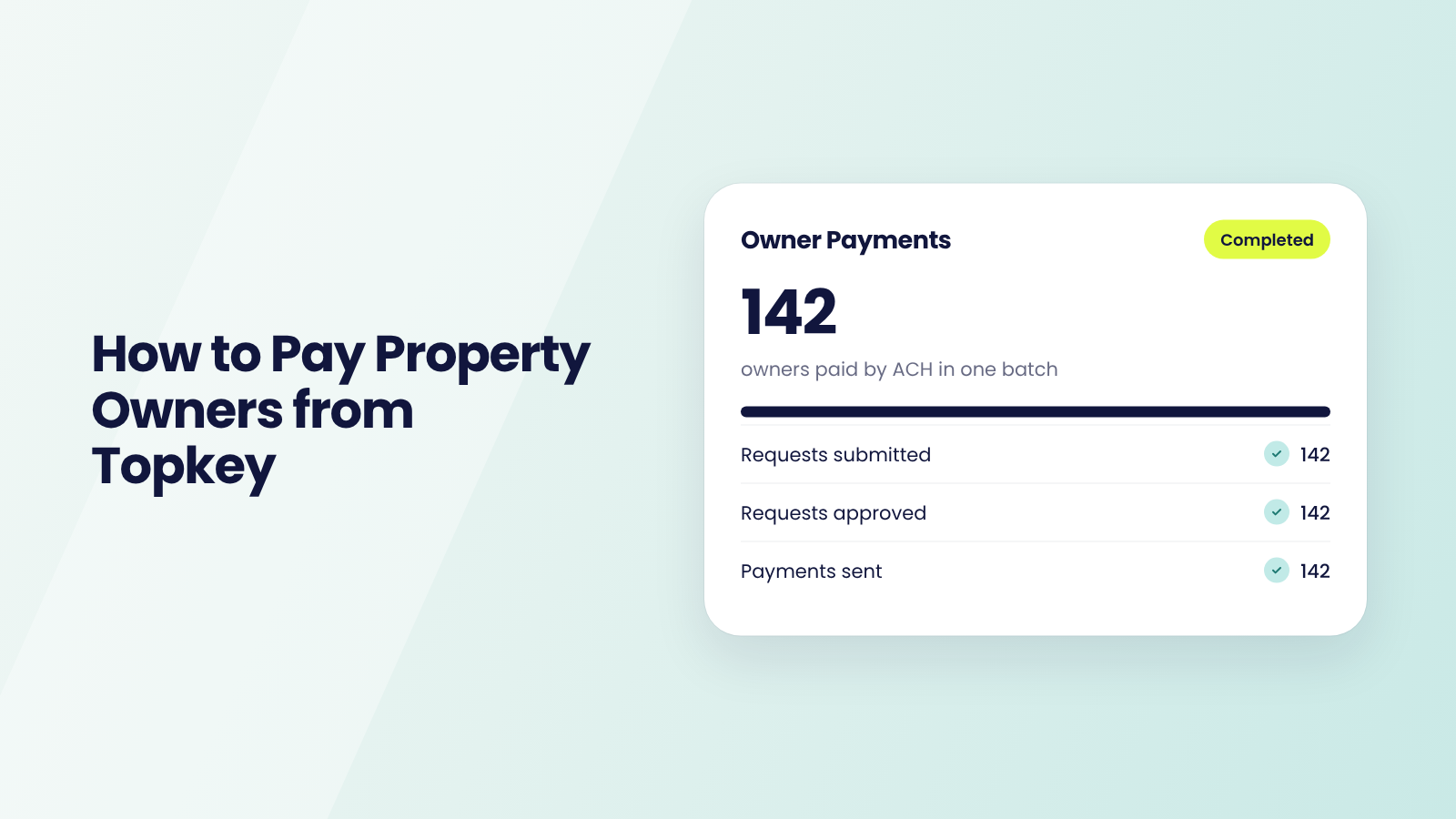
Payout Day in Five Browser Tabs
It's payout day. The owner statements are in your PMS, the account numbers are in a spreadsheet, the money moves through a bank portal that wants every payment typed by hand, and a few owners still get paper checks. You copy, paste, double check and do it again for the next owner.
Owners notice. Harry Kinney, General Manager of Western Property Management (300 units on Track), heard it for years. "One of the main reasons we started with Topkey was the ability to pay owners by ACH. Owners had been asking us for that for years."
Owners care about this because many management agreements say when their money is due. A bank portal makes you enter owners one at a time, and some banks cap how much ACH you can send in a day, so a late or stalled payout run lands on you.
This guide shows how to pay one owner or a hundred from Topkey, by ACH, with approvals where you want them.
Two Ways to Pay Owners in Topkey
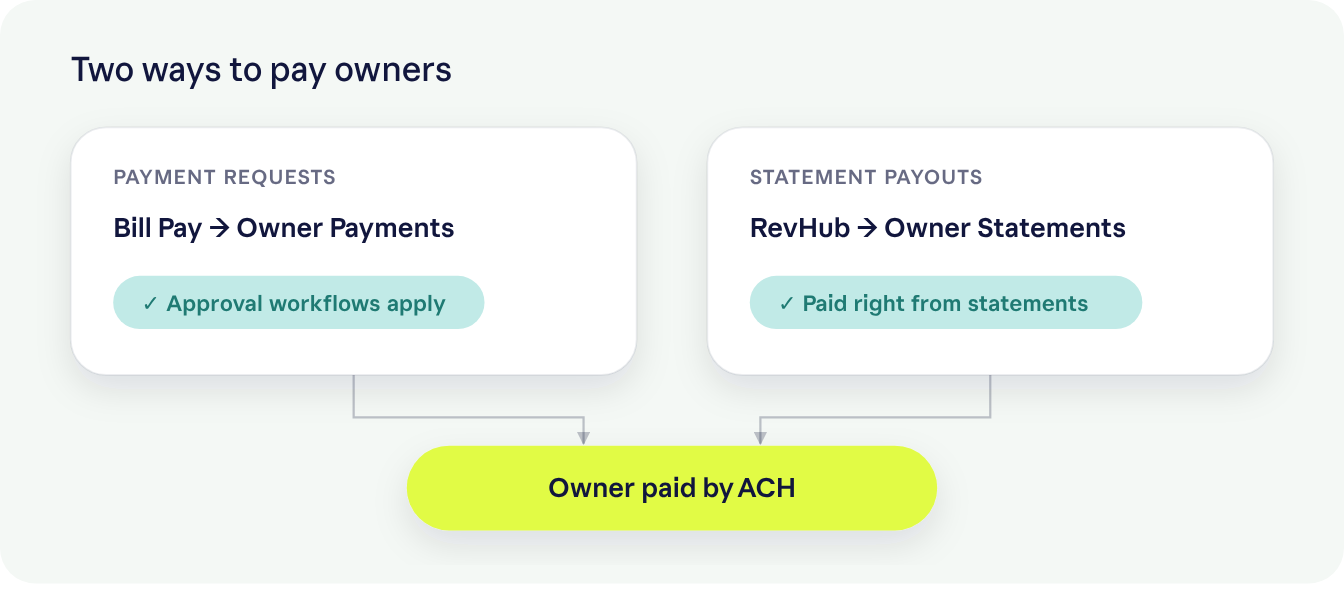
Topkey gives you two ways to pay owners.
- Payment requests live in Bill Pay. Use them for one-off and regular payouts, and add an approval workflow if you want a sign-off step.
- Pay Owners lives in RevHub. Go to RevHub → Owner Statements and click Pay Owners to pay owners from their statements. Statement payouts don't go through approval workflows, so if you need a sign-off, use payment requests.
Paying One Owner
Create the Payment Request
Go to Bill Pay → Owner Payments and click Pay an Owner.
- Pick the Owner. Property appears once you do.
- Fill in Amount, Payment For, GL Code and Memo.
- Click Create Payment Request.
You can also start from Pay Owner next to any owner in Portfolio → Owners, which fills in the owner for you.
Julio Clavijo, CFO of Otium (127 units on Guesty), describes how quick it is. "Paying owners through Topkey is much easier than going through our bank account. I can find the property or owner by typing the first couple of letters, add a memo, and send a same-day ACH payment."
Submit It, Then Approve
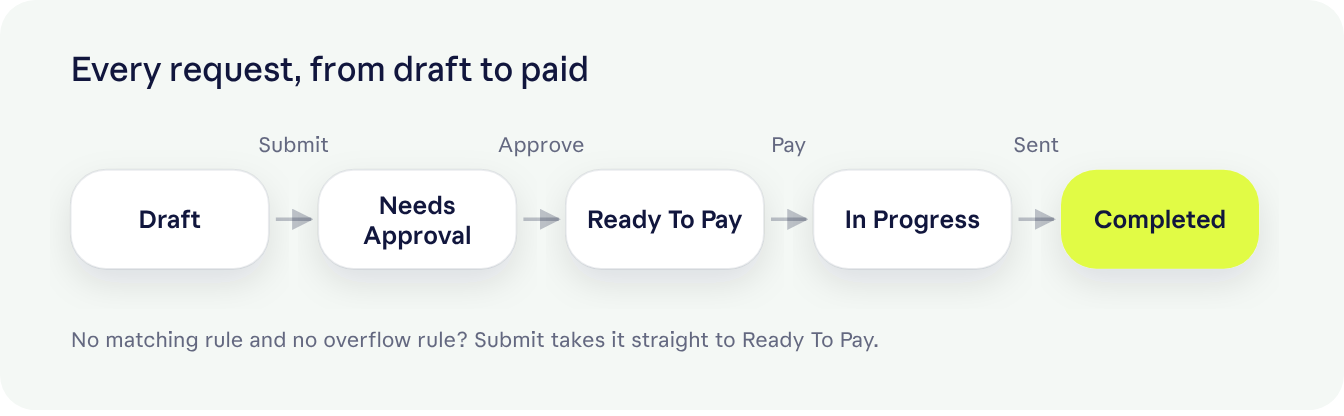
Every new request starts as a Draft. Open it and click Submit. Where it goes next depends on your approval workflow.
- If a rule matches, or the Owner Payments tab has an overflow rule, it goes to Needs Approval.
- If no rule matches and there's no overflow rule, it moves straight to Ready To Pay.
In Needs Approval, the approver clicks Approve to move it to Ready To Pay, or Deny to send it back to draft so it can be fixed.
Set up the workflow at Settings → Owner Payment Requests → Approval Workflows. Our approval workflows guide shows how to build one.
Send the Payment
From Ready To Pay, click Pay and Topkey walks you through each step.
- Choose Payment Type.
- Add bank details, only if the owner doesn't have them yet.
- Choose an Origin Account.
- Select the Address.
- Choose the delivery method.
- Choose when to pay.
- Review your payment and click Initiate Payment.
Paying Many Owners at Once
Import a CSV or Bulk Create
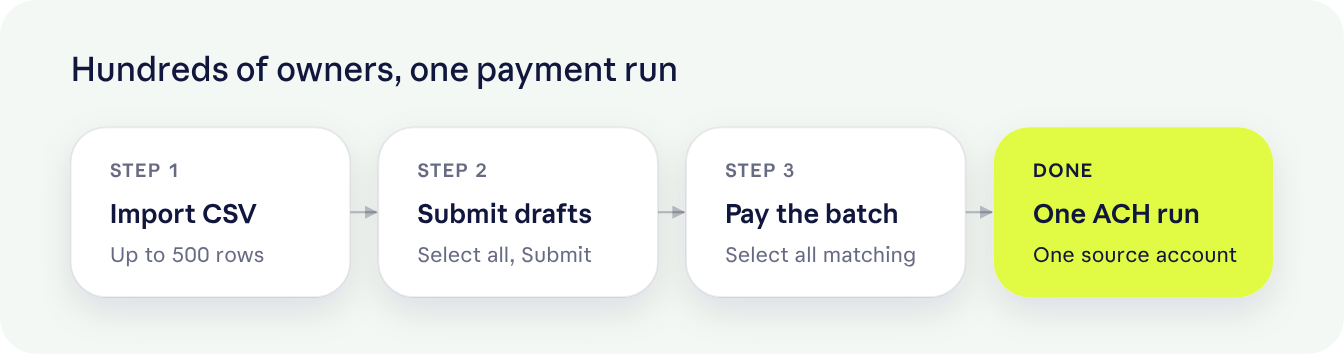
On Owner Payments, open Actions and choose Import CSV.
- Click Download Template.
- Fill in up to 500 rows. CSV and XLSX files both work.
- Click Upload & Preview.
Owner Name and Amount are required. Payment For, Memo and Property are optional. Owner names need to match owners already in Topkey. A row that doesn't match is skipped, unless its property points to an owner.
If you'd rather type them in, choose Bulk Create instead. Click Add Row for each owner, then Create Payments.
Imported and bulk-created requests start as drafts too. Open the Draft tab, select them and click Submit.
Pay Everything in Ready To Pay
Open Ready To Pay, click Select all matching and click Pay. You go through the same steps as a single payment, once for the whole batch.
Each batch pays from one source account, so run a separate batch for each account you pay from.
Lucas Caldeira, Finance Director at Bolivar Vacations (172 units on Streamline), puts it simply. "Topkey lets us process payments in bulk, so we can select everything at once and quickly pay owners and vendors." See more on bulk payments.
Getting Owner Bank Details
There are two ways to get an owner's bank details into Topkey.
- Type them yourself. Go to Portfolio → Owners, edit the owner and fill in Banking Info.
- Let the owner enter them. Open the owner, go to the Contacts tab, click Add Contact, then use Send Secure ACH Link on that contact. Nobody on your team has to collect account numbers over email.
If an owner has no bank details when you pay, the payment steps ask for them. Otherwise that step is skipped.
Methods, Timing and Combined Payments
Which Payment Methods You'll See
The methods you see depend on how your account is set up. They can include Same Day ACH, standard ACH, wire transfer and check. Ask your Topkey CS rep which methods are turned on for you.
Combining an Owner's Payouts
If one owner has several properties, go to Portfolio → Owners and check Combine payments beneath that owner's name. Topkey adds that owner's payouts together into one payment.
Five Rules for Every Owner Payout
1. Pick the Right Path Before You Pay
Why it matters. Statement payouts from RevHub don't go through approval workflows.
Do this. If someone needs to sign off before money moves, pay with payment requests in Bill Pay. To make sure no request skips that sign-off, add an overflow rule on the Owner Payments tab of Approval Workflows.
2. Collect Bank Details Before Payout Day
Why it matters. An owner without bank details adds a step to the payment, right when you're trying to finish the run.
Do this. When a new owner signs, add them as a contact and use Send Secure ACH Link.
3. Match Owner Names Before You Import
Why it matters. A row whose owner name doesn't match an owner in Topkey is skipped, unless its property points to an owner.
Do this. Copy owner names from Portfolio → Owners into the template before you fill in amounts.
4. Run One Batch for Each Source Account
Why it matters. Each batch pays from one source account.
Do this. Group payouts by the account they come from, and run each group as its own batch.
5. Write a Memo Owners Will Understand
Why it matters. The memo is how an owner knows what the money covers.
Do this. Name the month and the property, so the owner doesn't have to ask.
Spot Your Next Payout Fix
A few signs point to what to change next.
- Paying one owner several times for several homes? Turn on Combine payments.
- Requests sitting in Needs Approval? Check who's on the workflow, including the overflow rule.
- Typing owners in one by one every month? Switch to Import CSV.
- Still collecting account numbers by email? Use Send Secure ACH Link.
Keep Your Owner Payouts Working
- When a new owner signs, add them in Portfolio → Owners and send the Secure ACH Link.
- Keep the owner names in your import file matched to Topkey.
- When an approver changes, update the workflow at Settings → Owner Payment Requests → Approval Workflows.
- If a payment looks off, open the request's Activity tab to see who created, approved and sent it.
What Payout Day Looks Like Now
The bookkeeper uploads the month's CSV and submits it. The controller approves the batch. One click on Ready To Pay and the owners are paid by ACH. Nobody types an account number, and every payment request is recorded in Topkey with its property, GL code and memo. Each request's Activity tab shows who created, approved and sent it.
Owners see the difference too. Their money arrives by ACH instead of a check in the mail, with a memo you write so they know what it covers.
Owner Payouts FAQ
Yes. Add them as a contact on the owner's Contacts tab and use Send Secure ACH Link.
No. Only payment requests in Bill Pay go through approval workflows.
Not in one batch. Each batch pays from one source account, so run a batch per account.
Yes, if checks are turned on for your account. Ask your Topkey CS rep if you don't see them.
Up to 500 rows per file. CSV and XLSX both work.
It goes back to draft so it can be fixed and submitted again.
Yes. Check Combine payments beneath that owner's name in Portfolio → Owners.
It shows as Failed, with the reason right beneath the status. Teammates who subscribe to payment-failed notifications also get an email with the reason.
Owners Paid, Payout Day Done
Payout day should take a few clicks, not a full afternoon. If you use Topkey, open Bill Pay → Owner Payments and send your next payout from there. If you don't yet, see how Topkey handles owner payouts.