
How to Use Bulk Actions in Topkey to Save Hours Every Month-End
Learn how to use bulk actions in Topkey to code, approve, sync and pay hundreds of transactions and bills at once and save hours every month-end.
- Product area
- Platform
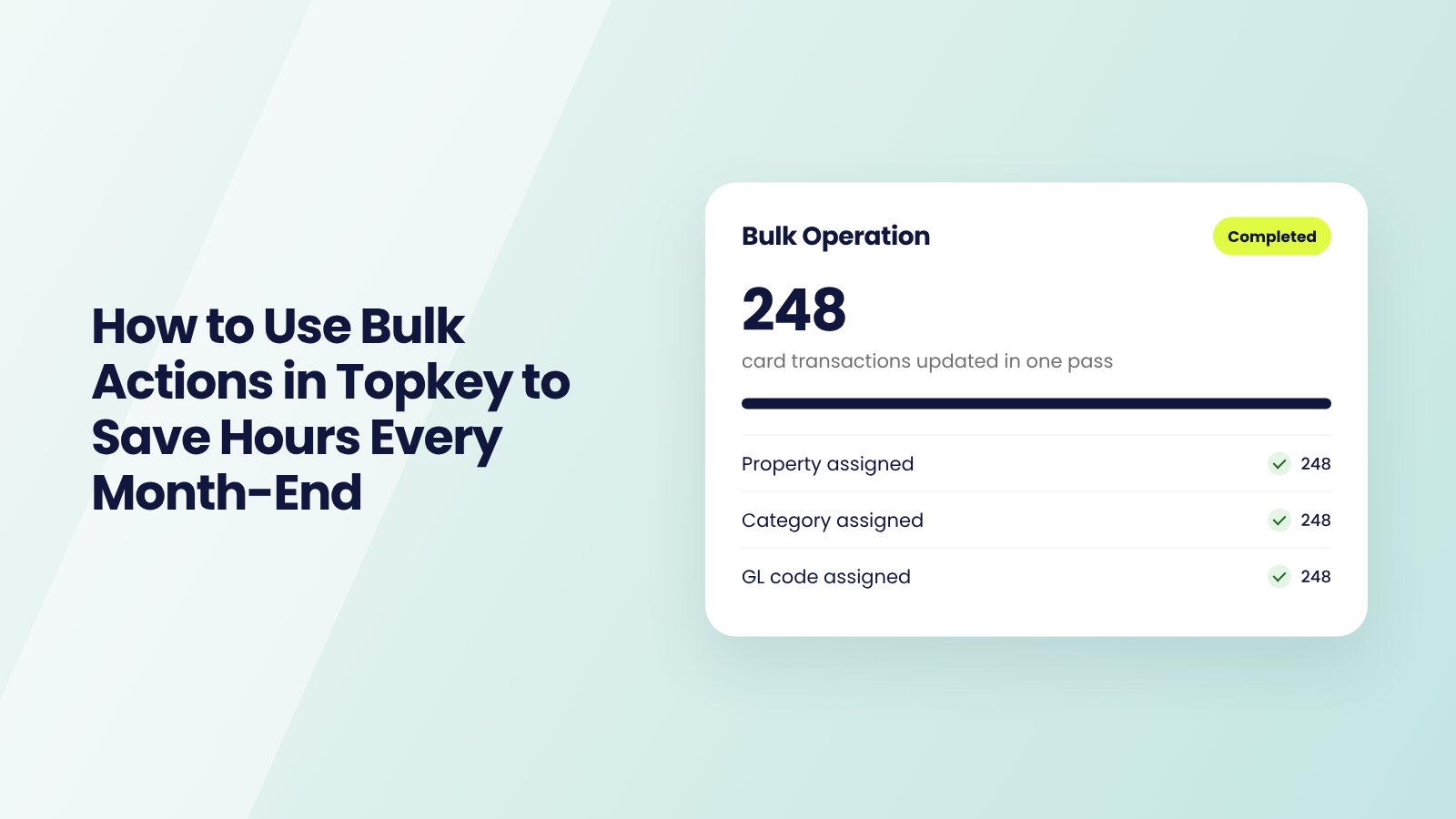
Most month-end work is the same edit made over and over. The same property on 40 card charges. The same GL code on a vendor's bills. The same receipt reminder to every cardholder who's behind. Bulk actions in Topkey let you make that edit once.
This guide is built from the workflows Topkey's customer success team teaches property managers, in the order we'd walk through them with you on a call.
First, you'll see what bulk actions are and where to find them. Then we'll run one together, step by step, in your own account. Before you run a real batch, read the seven rules that prevent the most common mistakes, since a bulk change can't be undone. From there, go to the section for your role and set up its workflows one at a time. Once those are part of your routine, look for the next pile of repeat work you can clear the same way.
Before you start: each bulk action has its own permission. Syncing needs Accounting Sync access, archiving needs archive access, and approving needs you to be an approver on that workflow, so different people on your team will see different options.
What Are Bulk Actions?
A bulk action makes one change to many rows at once. You can code charges, approve them, send reminders, mark them completed, sync them to your accounting software, pay bills or export receipts, all from the list you're already working in.
Every bulk action is the same three moves: filter the list, select the rows, and choose the action.
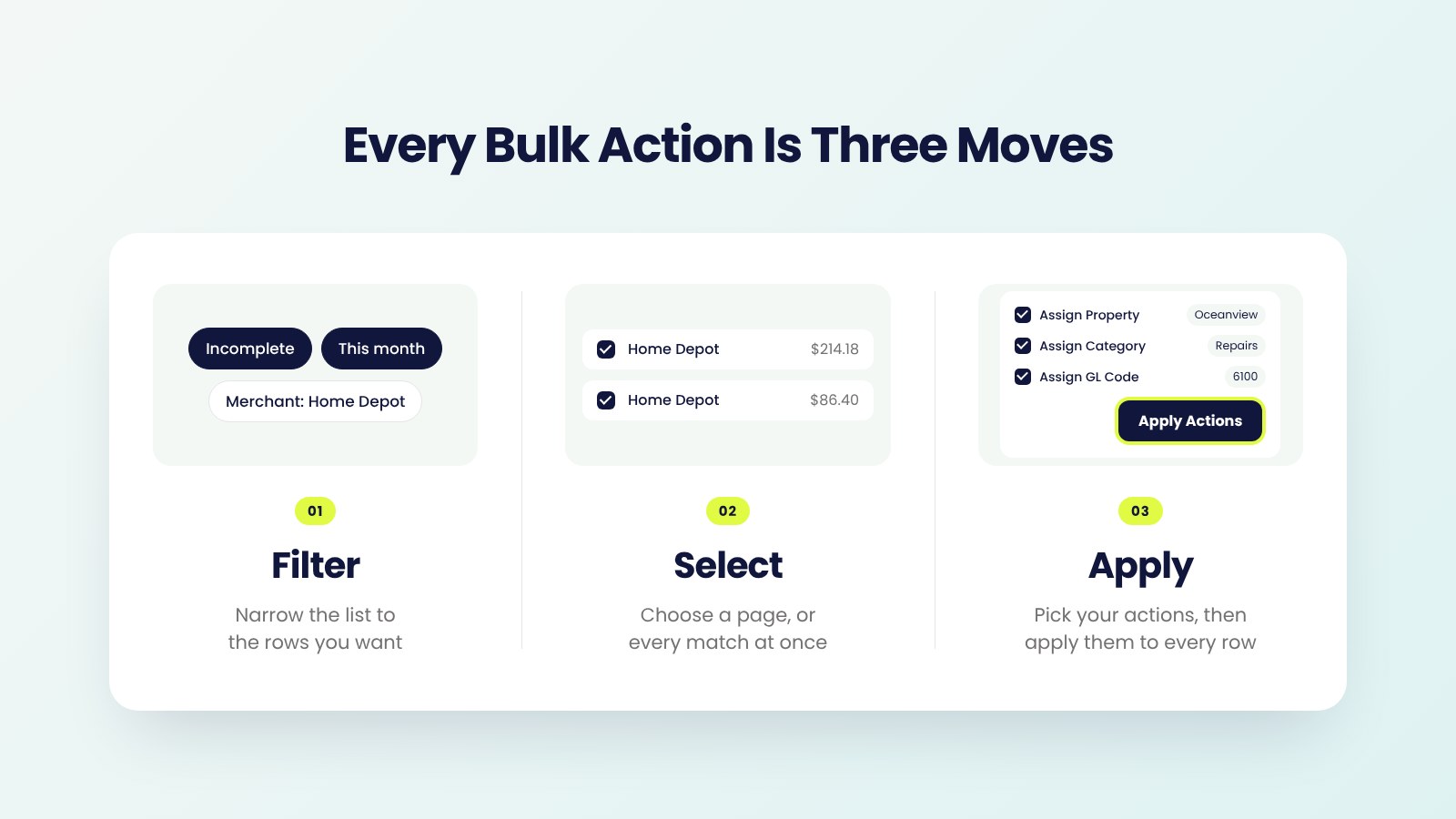
You'll find bulk actions on Card Transactions, Bills, Vendors, Owners and Accounting Sync, and the options change with the page and the tab you're on. When you select rows, a bar appears at the bottom with the most common actions. More opens the Bulk Operation panel with everything else.
Most bulk actions run in the background. The Bulk Operations page, under Reports, shows each batch's progress and lists anything that was skipped or failed, with the reason, so one bad row doesn't stop the rest.
Bulk actions pair with the views from our custom views guide. A saved view shows you the work. A bulk action clears it.
Now that you know where bulk actions live and what they can do, let's run one together from start to finish.
How to Run a Bulk Action
Every bulk action in Topkey follows the same five steps, whether you're coding charges, approving them or paying bills. Learn them once and every other workflow in this guide will feel familiar.
We'll use the example our customer success team teaches first: putting a property and GL code on a batch of card charges. Open Topkey in another tab and follow along. Nothing changes until you click Apply Actions in step 5, so you can practice the first four steps as often as you like.
These are the same five steps for any bulk action:
Filter to the rows you want to change.
Click here to open Card Transactions in your signed-in Topkey account. Start broad, like Incomplete this month, then narrow by card, property or merchant until the list shows only the rows you want to change.
Show 100 rows.
Lists show 25 rows by default. Set Show at the bottom right to 100, the most a page can hold, so you work through fewer pages.
Select the rows.
Check the box on each row you want, or check the box in the header to select the whole page. When more rows match your filter, a banner offers to select all of them, up to 1,000. The bar at the bottom shows how many rows you've selected and what they add up to.
Choose the actions.
Open More. The Bulk Operation panel lists every action for that page. Check each one you want, like Assign Property, Assign Category and Assign GL Code, and fill in its value. You can choose several at once, so the same rows don't need three passes.
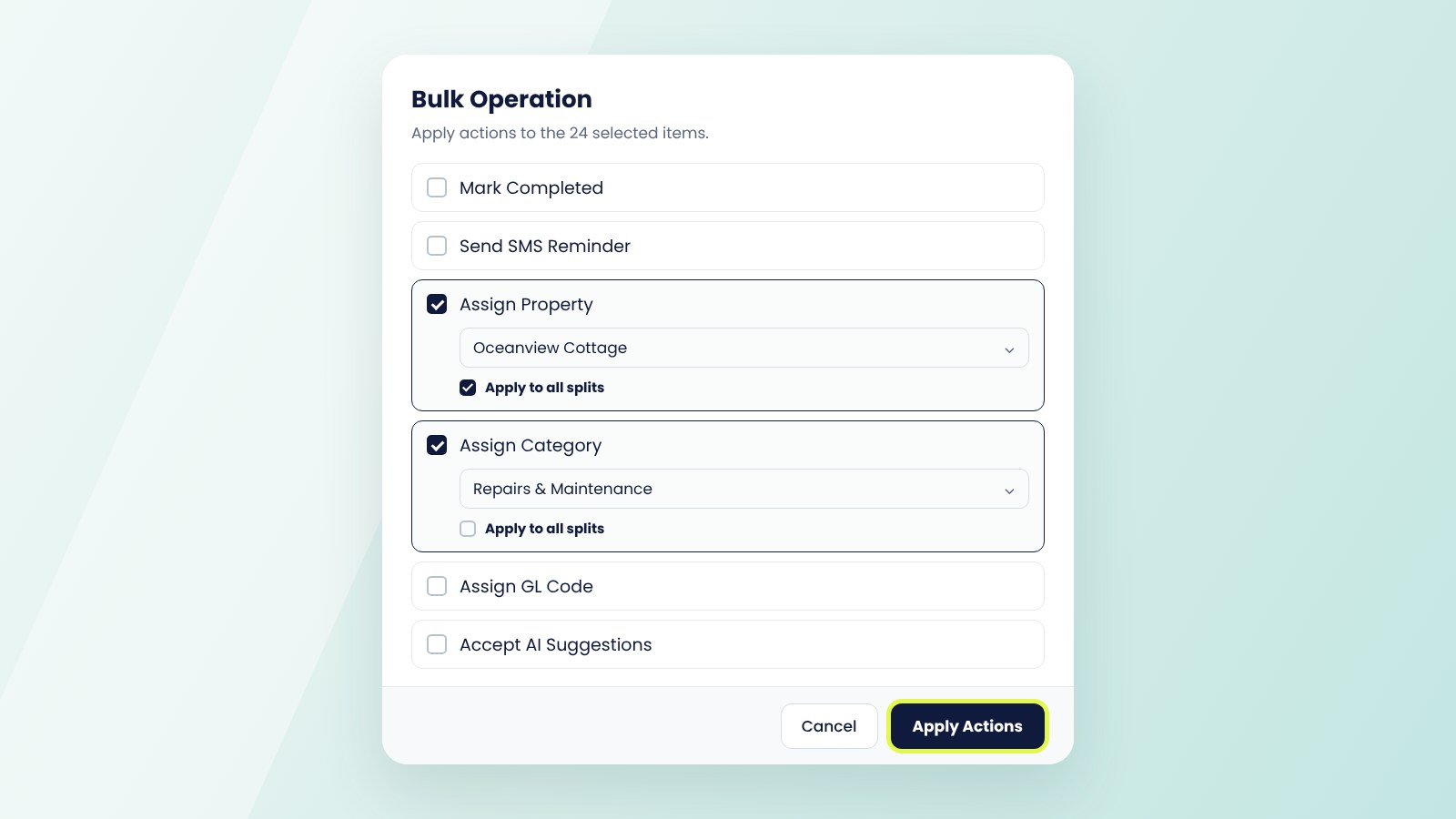
Apply and check the results.
Click Apply Actions. The change runs in the background, and the Bulk Operations page shows anything that was skipped or failed.
Once it's done: every row you selected updates, and any row that couldn't change is listed with the reason, so you can fix just those. Save your filter as a view, and next month starts with the same list one click away. The workflows for each role are in Bulk Actions for Your Role below.
Before you get there, take a few minutes with the rules below. They're short, and they're what keeps one click from turning into a month of cleanup.
Rules for Every Bulk Action
Bulk actions save so much time because one click reaches hundreds of rows. That's also why a small slip can reach hundreds of rows. These seven rules come from the mistakes our customer success team helps property managers fix most often. Each one explains why it matters and the habit that prevents it. Read them once before your first real batch, and come back to them any time a result surprises you.
1. Filter First, Then Select
A selection only covers what your filter shows.
Why it matters: a filter that's too wide changes rows you never meant to touch. One that's too narrow misses rows you meant to fix.
Do this: filter until the list shows exactly what you want to change, then select.
2. Check Before You Apply
There's no undo for a bulk change. Some actions can be reversed one by one, like Unarchive, but a batch can't be rolled back.
Why it matters: the bar at the bottom shows how many rows you've selected and their total. It's your last check that the filter is right. If you expected one vendor's charges and the total looks like a month of spend, something's off.
Do this: read the count and the total every time, and recheck your filters if either surprises you.
3. Bulk Edits Replace What's There
When you assign a property, category or GL code in bulk, it replaces the value already on each row.
Why it matters: a charge someone coded by hand gets the new value too. Charges split across several properties or categories are skipped unless you check Apply to all splits, and locked records are skipped.
Do this: filter out rows that are already coded the way you want before you apply, and check the skipped list for splits.
4. Only Eligible Items Change
A bulk action skips any row it can't act on.
Why it matters: bulk approve only acts on items that are waiting for approval and that you're an approver on. Drafts, items already decided and items assigned to someone else are skipped. Skipped rows can make a bulk action look like it didn't work.
Do this: open the batch on the Bulk Operations page with View Details and read the reasons before you try again.
5. Approve Before You Sync
Syncing is a bulk action too, and it doesn't check whether a charge is right. A bulk edit also doesn't send anything back through approval.
Why it matters: a half-coded bill or an unchecked charge that syncs lands in your accounting software and, from there, an owner statement.
Do this: filter Accounting Sync to approved items, and have one person on the team own syncing. Our approval workflows guide shows how to require approval before anything syncs.
6. Never Pay for Work That Isn't Done
Bulk pay sends money to every payee you select.
Why it matters: when bills come from a task tool, a task that's only been created hasn't been done. As our customer success team puts it, you don't want to "pay a bunch of vendors for work that wasn't even done yet."
Do this: pay only bills in Ready To Pay, and build bills only from tasks that are approved or finished.
7. Spot-Check Before You Push
Bulk actions save clicks, not judgment.
Why it matters: a wrong property on 40 charges is 40 wrong owner charges, and your team is still the one checking that the coding is right.
Do this: after a bulk edit, open two or three rows, especially Bill to Owner charges, before they sync or reach an owner statement.
With these habits in place, you're ready for the part that saves the most time: the workflows built for your role.
Bulk Actions for Your Role
This is where bulk actions become part of your week. Each section below is ordered the way our customer success team sets them up with new customers: the first workflow saves the most time, and each one builds on the last.
Every workflow tells you which view to start from, when to run it, the exact clicks and what to expect once it's done. Start with the section for your role and work from the top. If your job spans more than one role, finish your main section first, then move to the next.
- Bulk actions for admins and finance leads for teams that manage cardholders and approvals.
- Bulk actions for bookkeepers and accountants for teams that code charges and sync to accounting.
- Bulk actions for accounts payable for teams that route, code and pay bills.
Bulk Actions for Admins and Finance Leads
Admins and finance leads spend month-end chasing people: receipts that never came in, charges waiting on approval and owners asking for backup. These four workflows do the chasing for you. Set up the first two before your next close, and you'll go into month-end with a much shorter list.
1) Send Receipt Reminders to Everyone Who's Behind
A cardholder missing a receipt usually just needs a nudge, and one text per charge takes all morning. This sends every nudge at once.
Start from: your Incomplete this month view.
When: every Monday, and again a few days before month-end.
How to do it:
- Open Card Transactions and filter to Incomplete this month.
- Set Show to 100 and select the page.
- Open More, choose Send SMS Reminder and click Apply Actions.
Once it's done: each cardholder gets a text with a link to add the receipt, memo and property. Bulk reminders use the standard text; to send a custom message, open the charge.
2) Close Out Charges That Will Never Have a Receipt
Some charges never come with a receipt, like a card fee or a lost slip you've already documented. Left open, they keep the Incomplete list from ever reaching zero.
Start from: your Missing receipts view.
When: during your month-end review, once reminders have gone out.
How to do it:
- Filter to the charges you've confirmed won't have a receipt.
- Select them, open More, choose Mark Completed and click Apply Actions.
- Add a memo with the reason on each one, so it's on record.
Once it's done: the charges leave your Incomplete list, so the count shows only the work that's left.
3) Approve Your Team's Charges in One Pass
Approving charges one at a time is how approvals pile up until month-end. This clears them in one step.
Start from: a view of charges waiting for your approval.
When: twice a week, so nothing waits more than a few days.
How to do it:
- Filter to your group and to charges waiting for approval.
- Select the page, open More, choose Approve and click Apply Actions.
- Check the batch on the Bulk Operations page for anything skipped.
Once it's done: approved charges move on to sync. Managers can do the same for their own group, so finance only sees what's left.
4) Pull Receipts and Exports for an Owner or an Audit
When an owner asks what you spent on their home, or your accountant asks for a month of receipts, you shouldn't be downloading them one by one.
Start from: a view filtered to the property or the month.
When: whenever an owner, auditor or accountant asks.
How to do it:
- Filter to the property, owner or date range.
- Select the rows and choose Download in the bar at the bottom.
- Pick Receipt Images (ZIP) or Download CSV, with splits on the same row or on separate rows.
Once it's done: you have every receipt in one file, ready to send. For a large account, export one month at a time.
Once receipts are in and approvals are moving, the charges land with your bookkeeper. Here's how they clear them in a few passes instead of a few days.
Bulk Actions for Bookkeepers and Accountants
Bookkeepers carry the volume: hundreds of charges to code, approve and sync every month. These four workflows run in order, and together they turn a wall of uncategorized charges into a coded, approved and synced month. Run them once a week, and month-end becomes a review instead of a race.
1) Code a Batch of Charges in One Pass
Most charges in a batch share the same answer. A month of Home Depot runs for one property goes to the same category, and every Shell charge goes to the same fuel GL code. Coding them one by one is the biggest time sink in month-end.
Start from: your Uncategorized view.
When: once a week, so month-end is review, not data entry.
How to do it:
- Filter by merchant, card or property so the rows share the same coding.
- Select the page and open More.
- Choose Assign Property, Assign Category and Assign GL Code and fill in each one. Bill to Owner is a category, so set it with Assign Category. For split charges, check Apply to all splits under each field.
- Click Apply Actions, then open the exceptions and change just those.
Once it's done: the batch is coded and ready for approval.
2) Accept AI Category Suggestions in Bulk
Topkey suggests a category for many charges. When the suggestions are right, there's no reason to accept them one at a time.
When: in the same weekly pass, before you code anything by hand.
How to do it:
- Filter to charges with a suggested category.
- Select the ones that are right and open More.
- Choose Accept AI Suggestions and click Apply Actions.
Once it's done: the suggestions become the category. If you accept the same one every month, set up a merchant rule so it fills in on its own.
3) Code and Submit in the Same Step
When your account requires charges to be submitted for approval, coding and submitting are usually two passes. They don't have to be.
When: any time you code a batch that needs approval.
How to do it:
- Select the charges and open More.
- Set the coding, then choose Submit before you click Apply Actions. The Submit option only appears on accounts that use a submit step.
Once it's done: the charges are coded and on their way to the approver in one step.
4) Sync Approved Items to Your Accounting Software
Syncing one record at a time to QuickBooks Online, Xero, Oracle NetSuite or Sage Intacct is slow and easy to get wrong. Bulk sync sends a whole page of approved records at once.
Start from: your Not Yet Synced view, or Approved Bills to Sync.
When: weekly, after approvals clear.
How to do it:
- Open Accounting Sync Transactions or Accounting Sync Bills.
- Filter to approved items and select the page.
- Choose Sync in the bar at the bottom.
Once it's done: synced items leave the queue, and the Sync History tab shows each attempt. Bills sync the bill first, then the bill payment, and bill payments sync from Accounting Sync Bills, not from the bank feed.
If you already entered an item in your accounting software by hand, choose Mark as Manually Synced: Topkey records it as reconciled without sending it again. Need to send a corrected record again? Accounts with re-sync turned on can re-sync in bulk to QuickBooks Online, Xero or Sage Intacct.
Card charges are only half of your spend. Bills follow their own path from inbox to paid, and that's where accounts payable comes in.
Bulk Actions for Accounts Payable
AP moves bills from inbox to paid, and every step is a place where a bill can stall: no one owns it, the coding is missing, the vendor has no bank details or a duplicate slips through. These five workflows follow a bill through each of those steps, so a whole batch moves together. Work through them in order the first time, then fold them into your daily routine and your pay day.
1) Send New Bills to the Right Person
New bills stall when nobody owns them. Assigning them in a batch puts every bill in front of the right person on day one.
Start from: your Unassigned Bills view.
When: every morning, as new bills arrive.
How to do it:
- Filter to unassigned bills and sort by vendor.
- Select one vendor's bills, open More, choose Assign People, choose who owns them and click Apply Actions.
Once it's done: each person sees the bills they own. When you need to read every invoice before assigning it, open them one at a time instead.
2) Code and Submit a Batch of Draft Bills
Drafts pile up when each one needs the same GL code or due date. Set it once, then send the whole batch for approval.
When: every morning, after new bills are assigned.
How to do it:
- Open the Draft tab in Bill Pay and filter to bills that share the same coding, like one vendor's invoices.
- Select them, open More, choose Assign GL Code (and Assign Vendor or Assign Due Date if needed) and click Apply Actions.
- Select them again and choose Submit in the bar at the bottom.
Once it's done: the batch is coded and with its approvers. Bulk coding works on single-line bills; open a multi-line bill to code each line.
3) Pay a Batch of Vendor Bills
Paying vendors one at a time, every week, turns a pay run into an afternoon. Bulk pay sends the whole batch at once, even when it covers many vendors.
Start from: Ready To Pay.
When: on your regular pay day.
How to do it:
- Open Ready To Pay in Bill Pay and select the bills.
- Choose Pay in the bar at the bottom.
- Choose a Payment Type. ACH and check options send the payment; Manual only records a bill you already paid outside Topkey.
- Pick the Origin Account and When to Pay, check the Review step, then submit.
Once it's done: Topkey creates the payments, and each bill moves to Paid once its payment finishes processing. One exception: a manual check batch has to be for a single payee. For vendors who send many bills, turn on Combine payments on the vendor, or use Combine Payments in bulk from the Vendors list, so they get one payment instead of many.
4) Collect Bank Details from Vendors and Owners
You can't pay anyone by ACH without their bank details, and asking one email at a time is slow.
When: when you add new vendors or owners, before their first payment.
How to do it:
- Open Vendors or Owners and set Show to 100.
- Select the ones missing details and choose Collect ACH Info. On Vendors it's in the bar at the bottom; on Owners it's under More.
Once it's done: each one gets a secure link to add their bank details. Tell owners it's coming first, so it doesn't look like fraud.
5) Clear Out Drafts You Don't Need
Duplicate drafts are how the same invoice gets paid twice.
When: before each pay run.
How to do it:
- Filter to drafts and select the duplicates.
- Choose Archive in the bar, then open More, choose Delete and click Apply Actions. Topkey only deletes bills that have been archived.
Once it's done: only real bills move on to approval and payment.
Those are the workflows we see save the most time across every role. Your team will have repeat work of its own, and the next section shows you how to spot it.
Spot Your Next Bulk Action
The workflows above cover the work our customer success team sees most. Your next bulk action will come from your own routine. Look for these moments.
Changing the same field on more than a few rows? Filter to them and set it once from More.
Sending the same reminder every week? Save an Incomplete view and send reminders from it in bulk.
Syncing bills one at a time? Open Accounting Sync, filter to approved and sync the page.
Paying the same vendors every Friday? Pay them in one run from Ready To Pay.
Accepting the same AI suggestion every month? Make it a merchant rule instead.
Start with the one that ate the most time last month.
Once you're running a few bulk actions a week, a little upkeep keeps them working the way you expect.
Keep Bulk Actions Working
After a big batch, find it on the Bulk Operations page and open View Details. If it shows Retry Failed Items, use it to rerun only the rows that failed. Download Report gives you a CSV of what happened.
Keep the views you work from, and update them when your team or properties change.
For very large exports, pull one month at a time.
That's everything you need to run bulk actions with confidence. Here's how property managers already using them describe the difference.
What Topkey Customers Say about Bulk Actions
Property managers on Streamline, Guesty and QuickBooks Online use bulk actions to close their books faster. Here's how two of them put it.
Kristen Bottiggi, CFO at Pretty Picky Properties, manages 250 units on Streamline. "I like the bulk edit. I can mark the charges as billed to owners, and if one needs to be billed to corporate, I just change that one." Bulk first, then fix the exception, is the whole workflow.
Lucas Caldeira, Finance Director at Bolivar Vacations, runs 172 units on Streamline and QuickBooks Online. "Topkey lets us process payments in bulk, so we can select everything at once and quickly pay owners and vendors." A weekly pay run becomes one batch.
Start Using Bulk Actions Today
Open your Incomplete this month view, set Show to 100, select the page and assign the property and GL code in one apply. Then save the view, so next month starts where this one ended.
You don't have to set this up alone. Your customer success manager can help you build your views, pick the first workflows for your team and walk through your first batch with you. Reach out any time.
Bulk Actions FAQ
What Can You Do in Bulk in Topkey?
Code card charges, accept AI category suggestions, send receipt reminders, mark charges completed, approve, sync to accounting, pay bills, collect bank details and export receipts, all from the list you're working in.
How Many Transactions Can You Edit at Once?
Up to 100 on a page, and up to 1,000 when you select every result that matches your filter.
Can Managers Approve Expenses in Bulk?
Yes. Managers filter to their group's charges waiting for approval and approve them in one step. Anything they can't approve is skipped and listed with the reason.
Can You Pay Many Vendor Bills at Once?
Yes. Select bills for different vendors in Ready To Pay and pay them in one run, by ACH or check.
Does Bulk Sync Work with QuickBooks Online, Xero, NetSuite and Sage Intacct?
Yes. Sync a page of approved transactions or bills to any of them at once, and re-sync corrected records in bulk to QuickBooks Online, Xero or Sage Intacct.
What Happens If Part of a Batch Fails?
The rest still goes through. The Bulk Operations page lists the rows that failed or were skipped, with the reason, and lets you retry just the failures.
Do Bulk Actions Work with My PMS?
Yes. On accounts connected to Guesty, Streamline, Track, OwnerRez, Hostaway and other PMS integrations, you can also turn a batch of charges into work orders or owner charges in one step from the bar at the bottom.