
How to Give Owners Access to Their Statements Anytime in Topkey
Invite owners to the Topkey owner portal so they can open finalized statements, check receipts and download PDFs anytime, without emailing you for a copy.
- Published
- Product area
- Revenue Reconciliation
The Email That Comes Every Month
It's the third of the month. Statements went out last week, and an owner writes back. Can you resend September's statement? And what was the $186 plumbing charge?
Someone digs through sent mail for the PDF, then through bills for the invoice. Next month, a different owner asks the same kind of question. Some owners also check a PMS portal for revenue, and when those numbers don't match the statement, the questions get harder.
This guide shows how to give owners their own login to the Topkey owner portal. They see the same statements you finalized, download a PDF whenever they want and open the receipt behind an expense, without waiting on your team.
What Owners Get in the Portal
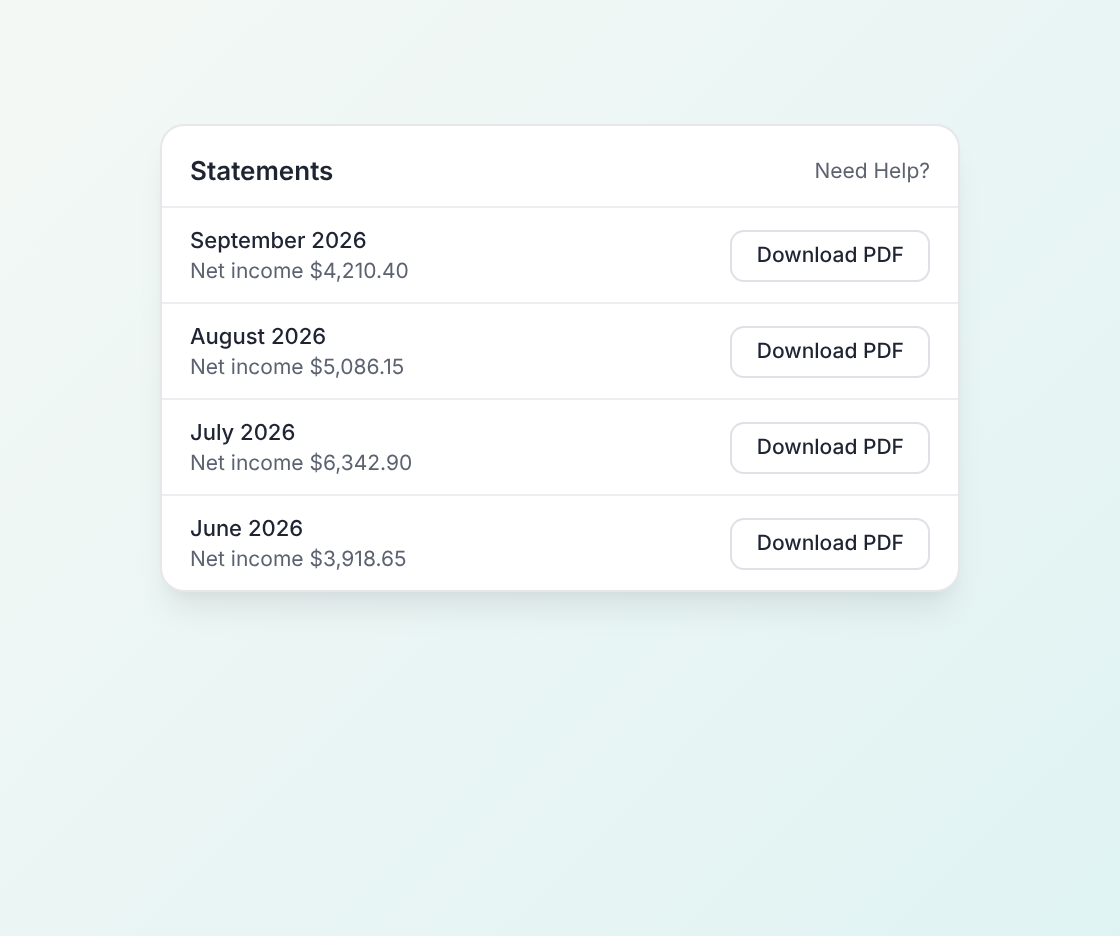
The owner portal is a simple, read-only place for owners to see their statements. When an owner signs in, they land on Statements.
From there they can open any statement you've finalized, download it with Download PDF and, if you turn it on, click View receipt on any expense to see the receipt or invoice behind it. A Need Help? link is always there.
An owner with several houses sees all of them in one place, because each statement breaks out net income by property. Owners only see their own statements, and only finalized ones. Drafts you're still working on never show. The portal doesn't show bank details, reservations or payments as separate pages, and owners can't change their bank details there.
Before You Invite Anyone
Choose What Owners See
Set this once, before the first owner logs in. Go to Settings → Owner Statements and open the Owner Statement Settings tab.
Show guest names to owners is on by default, so turn it off if guest names should stay private. Show receipt links on statements adds a View receipt link to any expense with a receipt or invoice attached. Show year to date on PDFs adds a Year to date column to the PDF, and it's off by default.
Expense display decides how expenses read on the statement, either Itemized or Grouped by property. Itemized answers more questions on its own.
What each line says, and how commission is worked out, comes from the owner's contract. Our owner contracts guide shows how to set one up.
Check the Owner's Email
Topkey invites the email on the owner's record. If an owner has no email, the invite button doesn't show. Add the email on the owner first.
Invite an Owner to the Portal
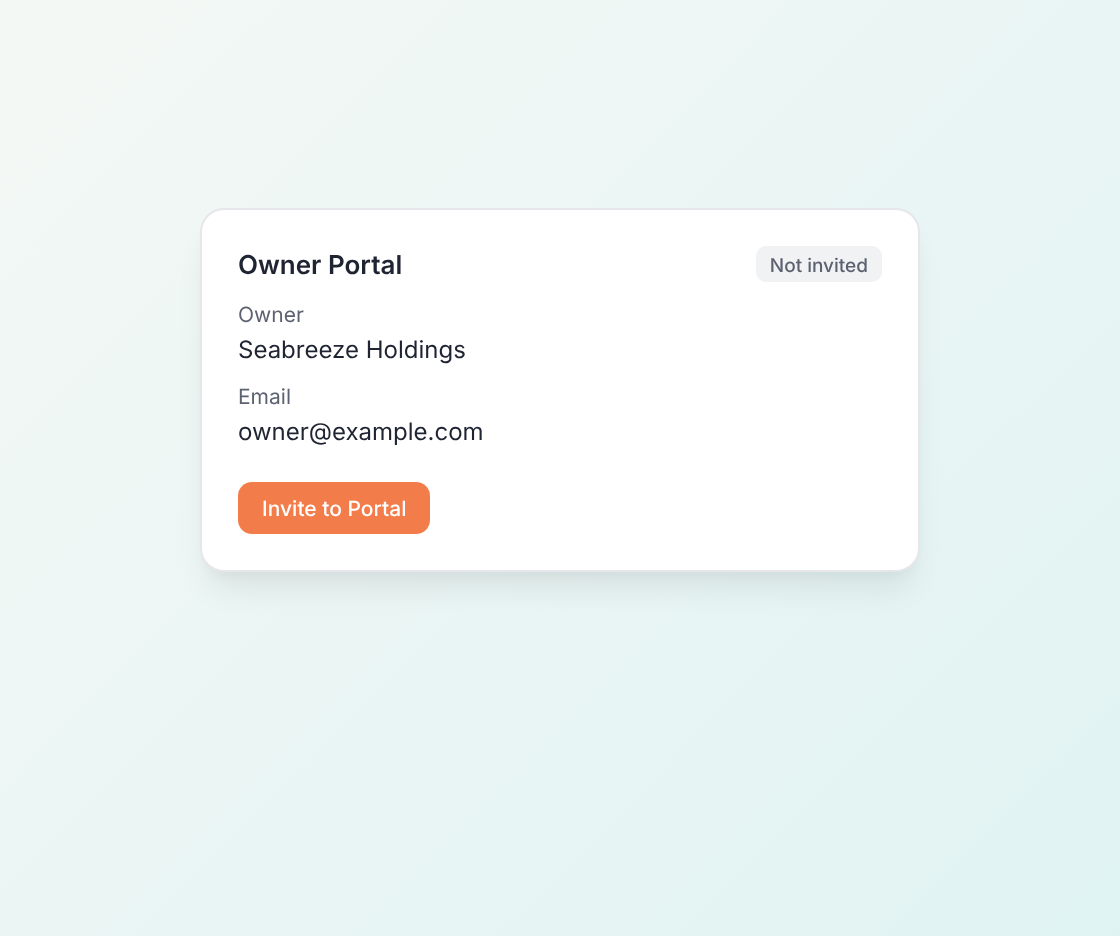
- Go to Portfolio → Owners and open the owner.
- Find the Owner Portal card.
- Click Invite to Portal.
- Check the name and email. The role is set to Owner for you.
- Click Send invitation.
You may be asked to confirm it's you before the invite goes out. That's a security step, so only the right people can give owners access.
The owner gets an email from your teammate's name, saying they've been invited to your company. They click View invitation, create a password (or sign in, if they already use Topkey) and land on their statements.
Owners sign in at the same Topkey sign-in page your team uses and land straight on Statements. If they forget their password, Forgot your password? lets them reset it without calling you.
Keep Track of Invites
Go to Settings → Team & Access → Manage Users and open Invitations. Each invite shows Accepted or Awaiting response.
For an invite still waiting, you can Resend invitation, or Copy link and send it yourself. Once an owner accepts, their Owner Portal card says "This owner has portal access and can sign in to view their statements."
To remove an owner's access, open the Members tab and use Remove member. Topkey asks you to confirm, because it can't be undone.
Keep Sending Statement Emails
The portal doesn't replace your monthly email. It backs it up.
Go to Settings → Owner Statements → Owner Statement Emails to set the Subject, Intro, Closing and Reply-to email. Each email attaches the statement PDF. Send a test email shows you how a real statement reads before any owner gets one.
The email doesn't add a portal link on its own, so add one yourself. A line in the Intro like "You can see every statement anytime at app.topkey.io" tells owners where to look next time.
Send one statement with Email Statement, or many at once from RevHub → Owner Statements with Email statements.
Five Rules for a Portal Owners Actually Use
1. Set What Owners See Before the First Invite
Why it matters. Turning guest names off after owners have seen them doesn't take them back.
Do this. Review Owner Statement Settings before you send a single invite.
2. Finalize Before You Tell Owners to Look
Why it matters. Drafts don't show in the portal. An owner who logs in early sees nothing new.
Do this. Finalize, then send the statement email.
3. Turn On Receipt Links
Why it matters. Most owner questions are about one charge. A receipt link answers it without an email.
Do this. Turn on Show receipt links on statements, and attach receipts to owner charges.
4. Put the Sign-In Link in Every Statement Email
Why it matters. Owners forget where the portal is between months.
Do this. Add the sign-in link to the Intro in Owner Statement Emails.
5. Invite Owners When They Sign On
Why it matters. An owner who starts with the portal never builds the habit of emailing you.
Do this. Make Invite to Portal part of owner onboarding.
Spot Your Next Portal Fix
A few signs point to what to change next.
- Owners still emailing for last month's PDF? Add the sign-in link to your statement email Intro.
- Questions about one charge? Turn on Show receipt links on statements.
- Invites stuck at Awaiting response? Resend invitation, or Copy link and send it yourself.
- An owner says the portal is empty? Check that their statements are finalized.
What Owners Do Instead
Now, on the third of the month, the owner signs in, downloads September's statement and opens the invoice for the $186 plumbing charge. Nobody on your team has to look anything up.
As Raina Strampello, Bookkeeper at Upkey (40+ units on Guesty), told us what happened once owners could see the backup for every charge. "I never hear from owners anymore. It doesn't happen."
Owner Portal FAQ
No. Only finalized, paid or carried forward statements show in the portal.
Yes. Each statement has a Download link in the list and Download PDF on the statement itself.
Each owner record has one login. For co-owners who both want access, use an email they both check.
No. Open the owner's Contacts tab and use Send Secure ACH Link. Our owner payouts guide walks through it.
Go to Settings → Team & Access → Manage Users, open Members and use Remove member.
They click Forgot your password? on the sign-in page and reset it themselves.
Invite Your First Owner
If you use Topkey, open Portfolio → Owners and invite one owner to the portal today. If you don't yet, see how Topkey handles owner statements and revenue reconciliation.