
How to Set Up Owner Contracts and Automate Commission in Topkey
Set commission rates, channel rates and monthly management fees once in an owner contract, and Topkey applies them to every reservation on the statement.
- Published
- Product area
- Owner Statements
The Commission Question You Can't Answer Fast
An owner opens their statement and calls. Why is the commission higher than last month? Did you take a cut of the cleaning fee?
The answer is somewhere in a spreadsheet. One owner pays 20%, another 18%. Airbnb bookings carry a different rate. Two houses pay a flat monthly fee. Only one person on your team knows all of it.
This guide shows how to set up owner contracts in Topkey. You write each management agreement once, and Topkey applies it to every reservation that posts to a statement. The math is the same every month, and you can show an owner exactly how you got the number.
How a Contract Turns into Commission
Every reservation on a statement follows the same three steps.
First, Topkey finds the contract. If the property has its own contract, that one applies. If not, the owner's contract does.
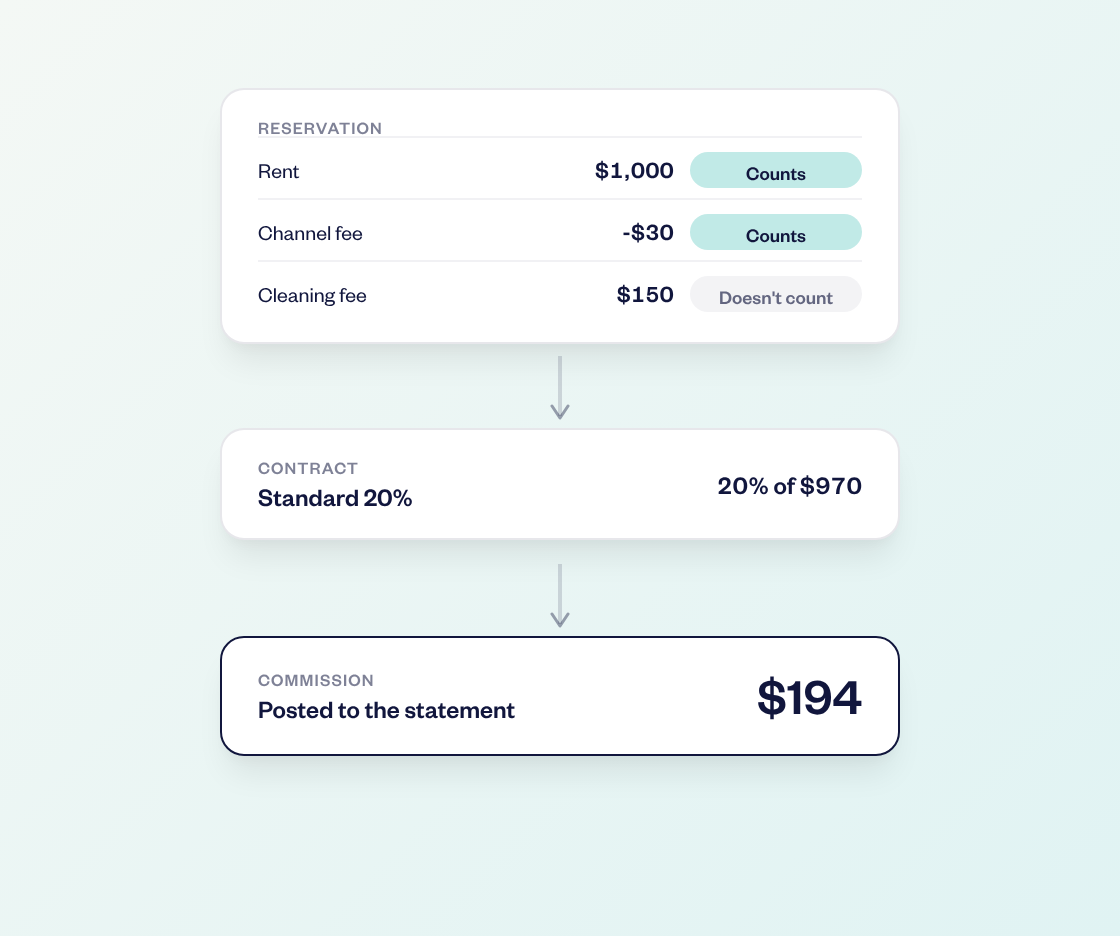
Next, it adds up the lines of the reservation that count toward commission. By default that's rent, additional income, pet fees and channel fees. Cleaning fees and processing fees don't count.
Then it applies the rate. If the contract has a rate for that booking channel, it uses it. If not, it uses the contract's base rate.
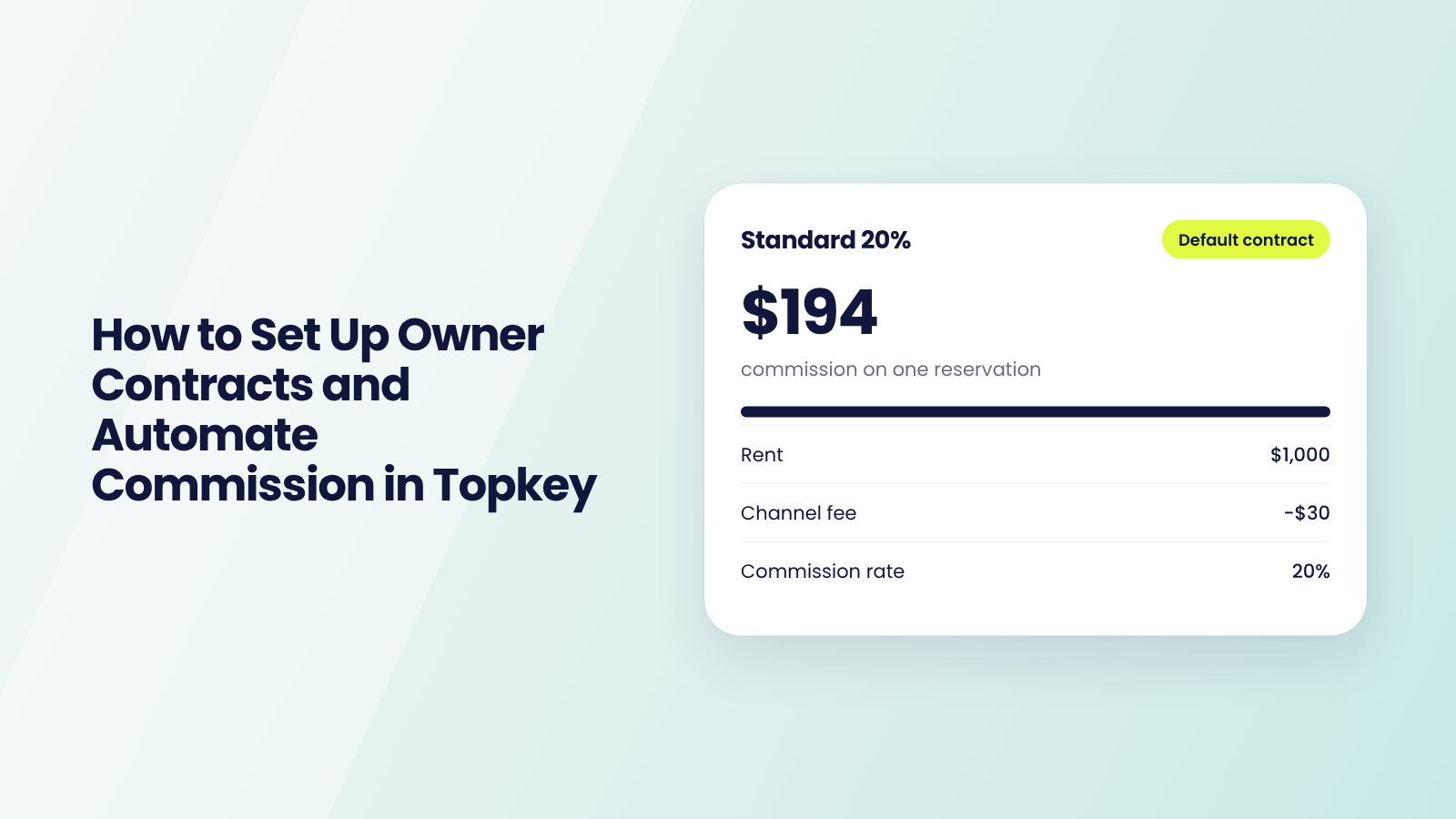
Here's one reservation on a 20% contract. Rent is $1,000 and the channel fee is -$30. Rent and the channel fee count, so commission is 20% of $970, or $194. The cleaning fee doesn't count, so it isn't part of the math. If your agreement takes commission before channel fees, the same reservation pays 20% of $1,000, or $200.
Before You Start
Pull out your management agreements and list each deal you actually have. It's usually a handful of deals, not one per owner.
For each deal, note the commission rate, any channel with a different rate, fees you keep and fees you share, any flat monthly fee per house and any reserve you hold back from owner payouts.
Set Up a Contract in Five Steps
Step 1. Create the Contract
- Go to Settings → Owner Statements and open the Owner Contracts tab.
- Click New Contract.
- Give it a name your team will recognize, such as Standard 20% or Luxury 25% with Reserve.
- Enter the Commission Rate (%).
- If you hold back money from payouts, enter the Working capital reserve and choose per property or per owner.
- Save.
Mark your most common deal as the Default contract. Topkey gives it to every new owner and uses it as the starting point for new contracts.
Step 2. Add Channel Rates
If some booking channels carry a different commission, open Commission by channel and click Add channel rate. Pick the channel and enter its rate.
A channel rate replaces the base rate for that channel only. Every other channel keeps the base rate.
Step 3. Decide What Counts and What Owners See
First, check Item Categories under Settings → Owner Statements. Every charge from your PMS needs a category, and a charge that isn't mapped can't post on any contract. Owners see the charge name from your PMS.
Then open the contract and you'll see its categories in three groups, Revenue, Deductions and Taxes. Click any category to set three things.
- Commission. Counts toward commission or Does not count.
- Statement. One combined line, Its own line or Not shown.
- Who gets it. Goes to the owner, You keep it or Shared, by a percent or dollar amount.
Taxes have their own choice, Owner remits it or You remit it. Cleaning and pet fee markups can be set by channel, as a percent or dollars, and go to you or the owner.
Some companies charge commission on rent before Airbnb's fee comes out. To do that, open the Channel fee category and set it to Does not count. Invoiced channel fee is a separate category, so check it too.
Step 4. Add Monthly Management Fees
For a flat monthly fee, open the contract, go to Monthly management fees and click Add Management Fee. Name the fee and enter the amount.
Topkey charges it once a month for each property on the contract, dated the first of the period. It isn't prorated, so a house that joins mid-month pays the full fee. It shows under Owner Expenses with the name you gave it, and you can waive it for one property in one month.
Step 5. Assign the Contract
Each owner and each property has a Contract field.
- Go to Portfolio → Owners, open the owner and click the edit icon.
- Choose the Contract and save.
- Only if one house has a different deal, open that property and set its Contract.
A property's contract always wins over the owner's. That's how one owner can have two houses on two different deals.
How the Statement Adds Up
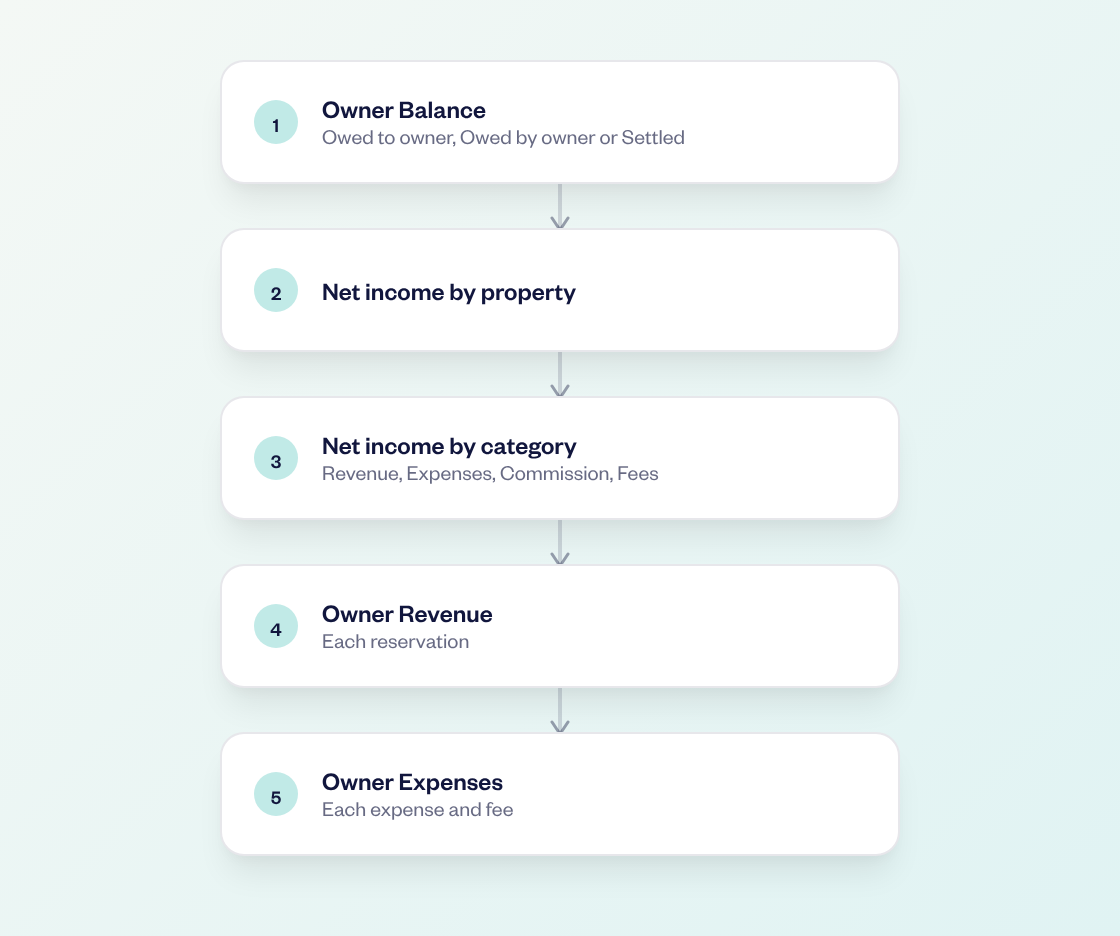
Each owner statement starts with the Owner Balance. Opening balance, minus Owner payout, plus Current month net income, equals Closing balance. Topkey labels the result Owed to owner, Owed by owner or Settled, and shows Reserve held and Amount to be paid when you hold a reserve.
Say an owner starts the month at $0, earns $4,200 in net income and you pay them $4,200. The closing balance is $0 and the statement says Settled. If you'd paid $4,000, it would say Owed to owner, with $200 left.
Next comes net income by property, then net income by category in this order, Revenue, Expenses, Commission, Fees, Taxes, Adjustments and Net income.
Below that, Owner Revenue lists each reservation with Rental Income, Other Rev, Channel Fees, Proc. Fees, Commission and Net. Owner Expenses lists expenses, including monthly management fees. To add a markup on what you bill to owners, see our owner charge markups guide.
If expenses are higher than revenue, the negative balance carries forward. It becomes next month's opening balance and shows as Owed by owner until revenue covers it.
Owners can open this same statement anytime once you invite them to the owner portal. When it's time to send the money, our owner payouts guide shows how to pay by ACH.
Test a Contract Before Month-End
Topkey's onboarding team walks new customers through the same check. Post one reservation, then compare it with what you'd have calculated by hand.
- Go to RevHub → Owner Statements → Revenue Pipeline and open a reservation.
- Click Post, or Post Reservation if it's the last one in the list.
- Open the owner's statement and check the commission and each line.
If the commission or a line looks wrong, click Undo Posting on the reservation, change the contract and post it again. A single reservation shows you exactly what a whole month of statements will look like.
Pick a reservation that was paid in full for your test. Our payout matching guide shows how to spot an Underpaid one before you post it.
Five Rules for Contracts That Hold Up
1. One Contract per Deal, Not per Owner
Why it matters. Twenty copies of the same deal means twenty places to update when terms change.
Do this. Build one contract for each set of terms, and assign it to every owner on those terms.
2. Assign on the Owner, Use the Property for Exceptions
Why it matters. Property contracts always win, so a forgotten one quietly overrides the owner's deal.
Do this. Set the owner's Contract first. Set a property's only when that house has different terms.
3. Decide What Owners See Before the First Statement
Why it matters. Showing channel fees one month and hiding them the next raises more questions than either.
Do this. Set each category to Its own line, One combined line or Not shown before you post anything.
4. Test on One Reservation
Why it matters. A wrong setting is easy to fix before statements go out, and hard to explain after.
Do this. Post one reservation per contract and check the commission by hand.
5. Keep the Reserve on the Owner's Contract
Why it matters. Topkey works out the reserve from the owner's contract, even when a property has its own.
Do this. Set the Working capital reserve on the contract you assign to the owner.
Spot Your Next Contract Fix
A few signs point to what to change next.
- An owner asks why commission changed? Check the property's Contract first, then the owner's.
- Commission higher than your agreement says? Check which categories are set to Counts toward commission.
- Airbnb bookings at the wrong rate? Open the contract and use Add channel rate.
- The same deal copied into several contracts? Keep one and assign it to every owner on those terms.
Keep Your Contracts Working
- New owners get the Default contract, so change it the day they sign if their deal is different.
- When an owner's terms change, update the contract before the next month's reservations post.
- When a house changes hands, check its property Contract, since it wins over the owner's.
When the Owner Calls Now
When that owner calls now, you open the statement and point to the rate on their contract and the lines that count toward it. The call takes a couple of minutes.
As Danielle Young, General Manager at KRAIN (140+ units on Guesty), told us, "We're confident in what's actually on the statement."
Owner Contracts FAQ
Yes. Set a different Contract on the property. A property's contract wins over the owner's.
Yes. Use Commission by channel and Add channel rate on the contract.
Not by default. Cleaning and processing fees don't count toward commission unless you change them.
Yes. Set the Channel fee category to Does not count.
Topkey charges them once a month for each property on the contract, in full, under Owner Expenses.
The negative balance carries forward to next month and shows as Owed by owner.
Build Your First Contract
If you use Topkey, open Owner Contracts and build your most common deal first. If you don't yet, see how Topkey handles owner statements and revenue reconciliation.