
How to Match Every Airbnb and Vrbo Payout to Its Reservations in Topkey
Match every Airbnb, Vrbo, Booking.com and Stripe payout to the reservations inside it in Topkey, and catch underpaid bookings before owner statements go out.
- Published
- Product area
- Revenue Reconciliation
The Deposit You Can't Explain
A deposit from Airbnb lands in your trust account. It's one number, and it covers a handful of stays across several houses. Your PMS says what each stay should have paid. Nobody has time to check whether it did.
So most teams trust the deposit. Upkey's bookkeeper told us how it worked before Topkey. "We trusted that the Airbnb deposits were correct."
That works until a booking comes in short and nobody notices until an owner asks. This guide shows how to match every payout to the reservations inside it, find the ones that were paid short and close the month knowing every deposit is accounted for.
How Topkey Matches a Payout
Matching happens in two steps.
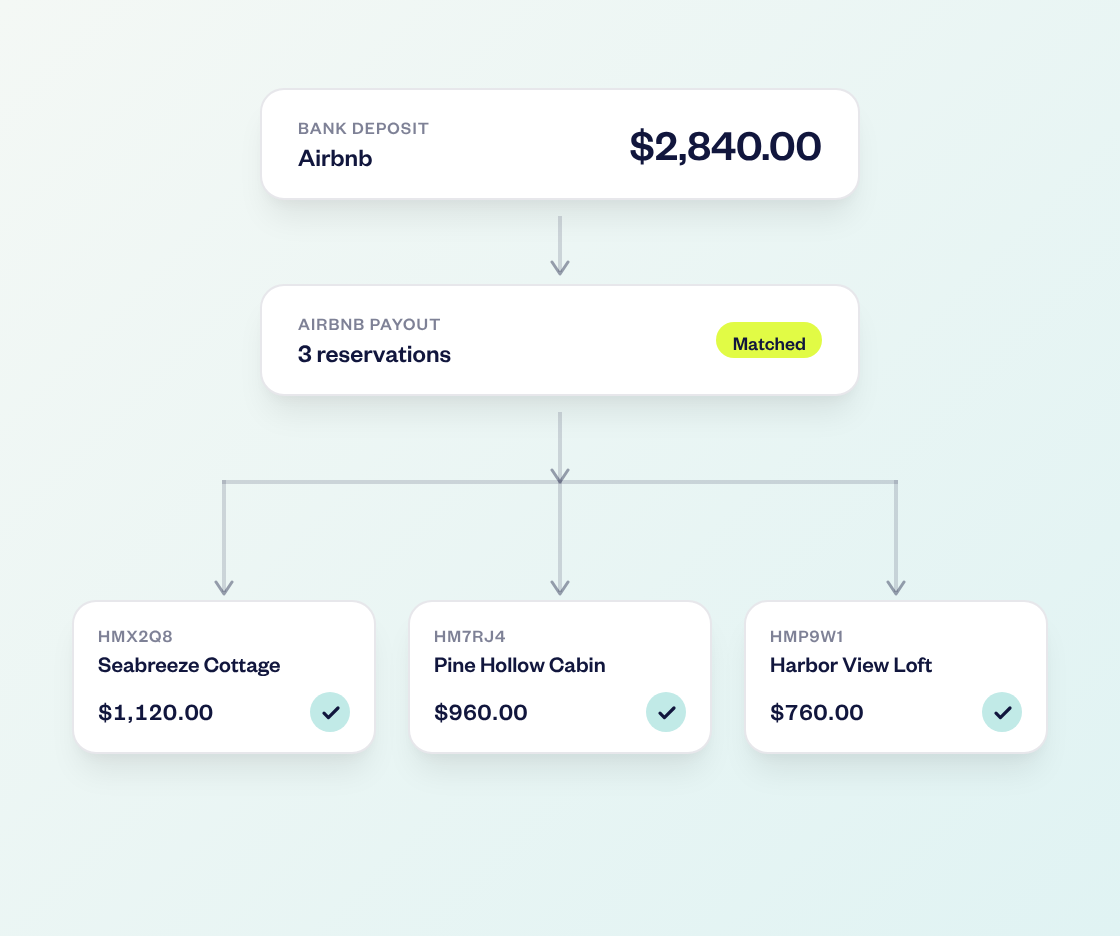
First, Topkey ties the deposit in your bank account to a payout from the channel. For Airbnb, it can use the payout ID that comes through with the deposit. Otherwise it looks for a payout from the same source, for the same amount, dated up to five days before the deposit.
Then it ties each line in that payout to a reservation by confirmation code. One Airbnb deposit often holds several reservations, and each line matches its own reservation at the amount Airbnb reported for it.
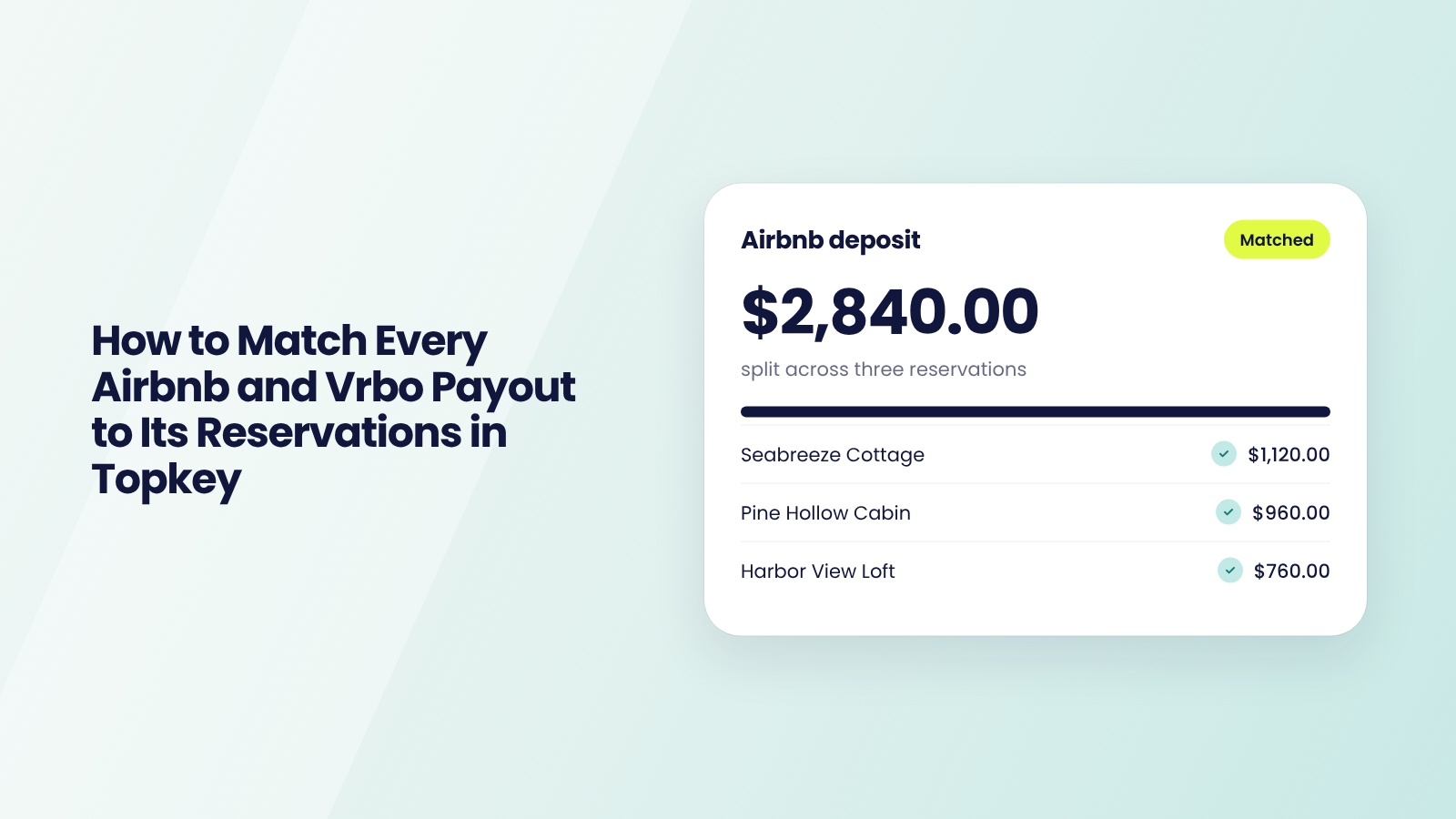
Say Airbnb deposits $2,840. Topkey finds the payout, sees three reservations inside it at $1,120, $960 and $760, and matches each one. If a fourth stay was expected and isn't there, that's the one to chase.
Connect Your Payout Sources
Topkey needs both sides of the match. The deposit comes from your bank account. The payout detail comes from the channel. Go to RevHub → Data Sources to see each one.
Airbnb connects directly and syncs daily. Its card shows when it last synced, with View sync log and Manual sync if you need them. Stripe connects the same way, and Connect another Stripe account adds a second one.
Booking.com payouts come in as a file. Download the payout report from Booking.com and click Upload CSV on its row. Vrbo payouts that run through Stripe or Guesty Pay match on their own. For Vrbo payouts deposited straight to your bank, upload the Vrbo report the same way.
Work Through Reconciliation
Open Reconciliation
Go to RevHub and open the Reconciliation tab. For trust accounts, you'll see Uncategorized, Unmatched Payouts, Partially Matched, Matched and Categorized. Other accounts show Matched, Partially Matched, Pending and Dismissed.
Most of your time goes into the middle two. Unmatched Payouts holds deposits Topkey knows are payouts but couldn't tie to reservations. Partially Matched holds payouts where some reservations matched and some didn't.
Match a Payout by Hand
- Open the deposit and find the Reservations section.
- Click Manually Match Transaction.
- Search for the reservation by keyword or dates, and click Match next to it.
- Check Amount to apply, and add a Note if you want a record of why.
- Watch Total Applied and Remaining Amount. When Remaining Amount is zero, the deposit is fully explained.
- Click Match Selected Reservations.
To change a match later, open the same deposit and use Edit Manual Matches.
Before you match by hand, check the confirmation code in your PMS. A missing or wrong code is the most common reason a payout doesn't match on its own.
Set Aside What Isn't a Payout
Not every deposit from a channel is a reservation payout. Use Not a reservation payout to move it out of the way. Use Dismiss Transaction for anything else that doesn't belong, and Restore Transaction if you change your mind.
Flag What Needs a Second Look
When you're not sure about a deposit, click the flag on its row, add a comment like "ask the owner about this one," and choose Flag for Review. It stays where it is, and you can find every flagged item later with the Flagged filter.
Find Underpaid and Overpaid Reservations
Every reservation shows how it was paid. Paid, Not Paid, Underpaid, Overpaid, Not expected or Owner collected.
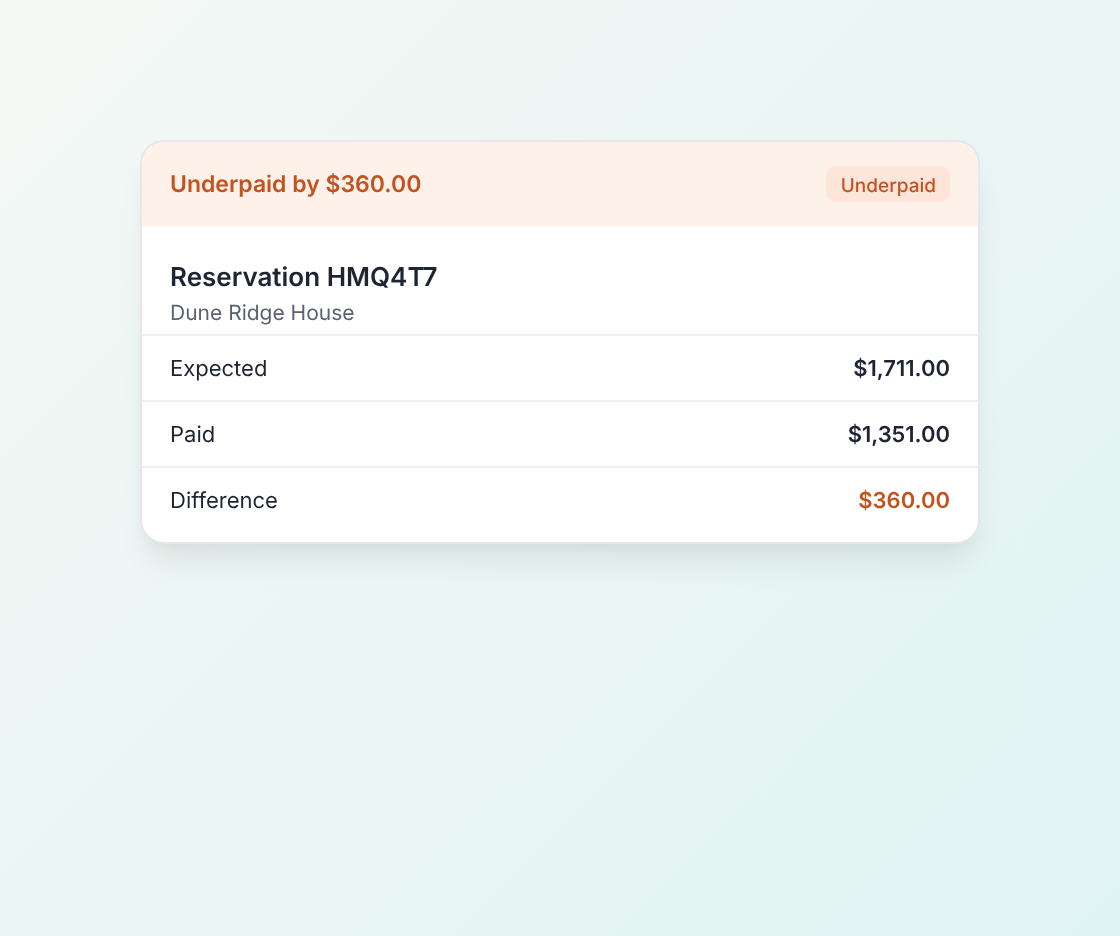
When a reservation is Underpaid or Overpaid, the banner at the top shows the difference between what was expected and what came in. If the guest opened a claim, the Resolution Center section shows its status, what was requested and what was paid.
On one customer call, a reservation expected to pay $1,711 came in at $1,351. The banner showed the $360 gap. Most gaps like that come from fees or taxes the channel kept, so check the reservation's numbers in your PMS before you chase the channel.
Two tools handle payments Topkey can't see in your bank.
- Record payment is for a payout the channel reports that never reached the account Topkey watches, like one sent to another account or straight to the owner. Choose where the money went and click Record payments.
- Mark as Paid is for a payment you received that has no bank transaction in Topkey. Enter the Date, Amount received and any Processing fee, then click Record Payment.
If the deposit is already in Topkey, match it instead. Topkey reminds you when it is.
Close the Month
The Reconciliation link in the sidebar opens Reconciliation Periods, one row per month. Each shows how much is Matched, Partial, Pending and Dismissed, with a progress bar and a note like "8 payouts left to match."
Click Reconcile on a month to work it. When everything's done, the month shows Ready to lock and you can lock it. Anything that shows up late goes to the current open month.
From Matched to Owner Statements
Matching a payout and posting a reservation to an owner statement are separate steps. A reservation can be matched before it's posted, or posted before its payout arrives.
Once your payouts tie out, post reservations from RevHub → Owner Statements. Our owner contracts guide walks through posting and testing a statement. Once statements are finalized, our P&L and cash flow guide shows how the month turned out.
Five Rules for Payouts That Always Tie Out
1. Work in Small Batches Every Week
Why it matters. A month of payouts at once is hundreds of lines, and the old ones are the hardest to trace.
Do this. Clear Unmatched Payouts once a week.
2. Upload Booking.com and Vrbo Reports Every Payout Cycle
Why it matters. Without the report, Topkey has a deposit but nothing to split it into.
Do this. Download the payout report each time you're paid and click Upload CSV under Data Sources.
3. Fix the Confirmation Code, Not the Amount
Why it matters. Topkey matches lines to reservations by confirmation code.
Do this. Check the code in your PMS before you match by hand.
4. Clear Non-Payouts Out of the Way
Why it matters. A list full of deposits that aren't bookings hides the ones that are.
Do this. Use Not a reservation payout as soon as you spot one.
5. Settle Underpaid Before You Post
Why it matters. An underpaid reservation posted to a statement pays the owner money you never got.
Do this. Look at the difference on every Underpaid reservation before you post it.
Spot Your Next Payout Fix
A few signs point to what to change next.
- A payout won't match on its own? Check the confirmation code in your PMS.
- A Booking.com deposit with nothing inside it? Upload that payout report under Data Sources.
- Deposits that aren't bookings crowding the list? Use Not a reservation payout.
- A month that won't lock? Look at Pending on Reconciliation Periods and clear what's left.
What a Matched Deposit Looks Like
Open that Airbnb deposit in Topkey now and you see each reservation inside it, paid in full, and the one that came in short shows the exact difference.
As Raina Strampello, Bookkeeper at Upkey (40+ units on Guesty), told us, "To see these transactions just match up so beautifully has been a game changer for us."
Payout Matching FAQ
Go to RevHub and open the Reconciliation tab.
By confirmation code. Each line in the payout matches the reservation with the same code.
Yes. Topkey splits it across every reservation inside the payout.
Booking.com payouts come in by CSV upload. Vrbo payouts through Stripe or Guesty Pay match on their own, and direct Vrbo deposits use a CSV upload.
The reservation was paid less than expected. The banner shows the difference.
Use Not a reservation payout to move it out of your list.
Clear Last Week's Payouts
If you use Topkey, open Reconciliation and clear last week's Unmatched Payouts. If you don't yet, see how Topkey handles revenue reconciliation.