
How to See Your Monthly Profit and Cash Flow in Topkey
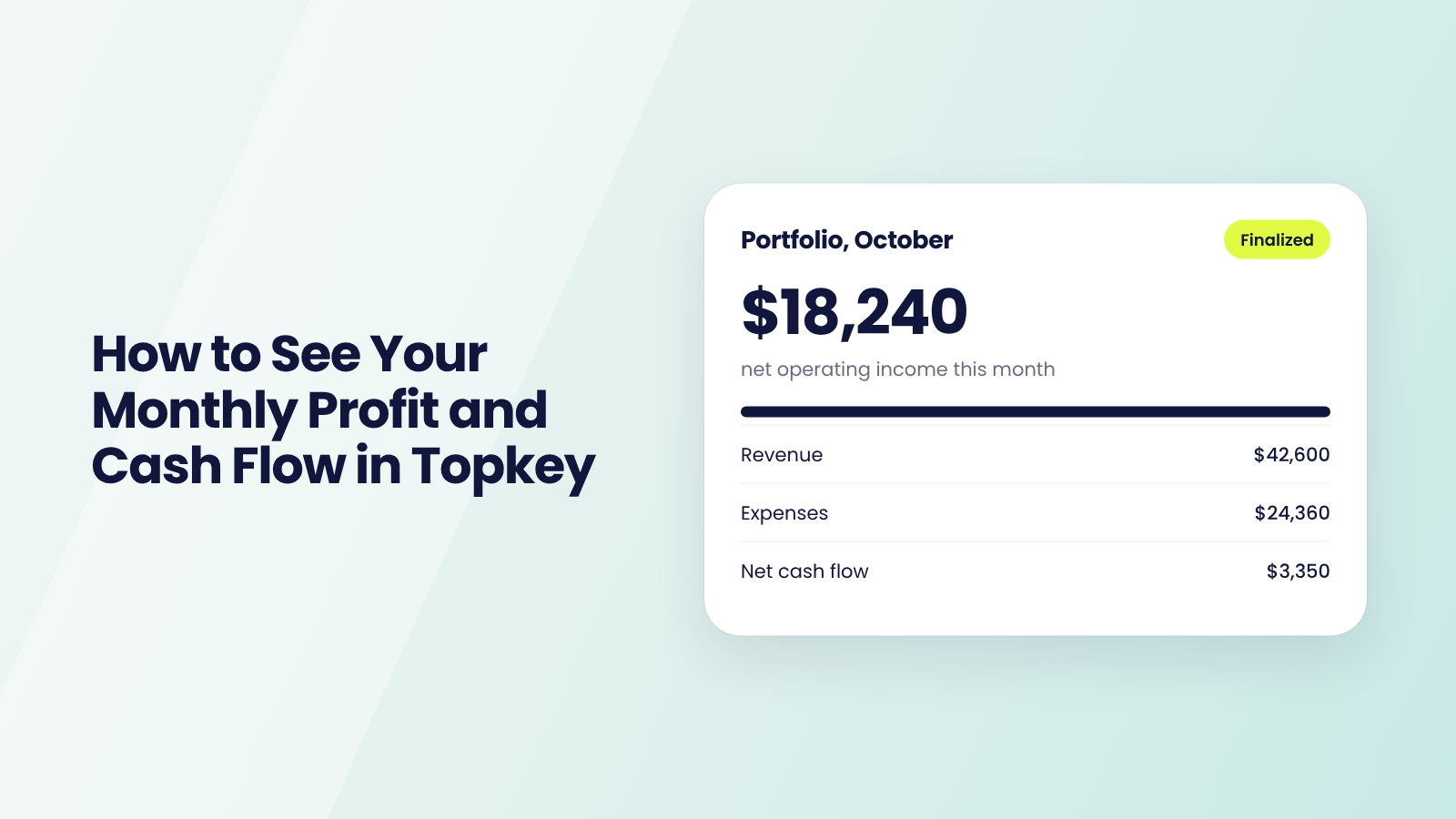
See profit and loss and cash flow for your whole portfolio in Topkey, and profit by property on your dashboard, without waiting on month-end books.
- Published
- Product area
- Accounting
The P&L That Shows Up Too Late
When a month ends, you want to know whether revenue held up, whether repairs ate into the margin and how much went out to owners.
For a lot of property managers, that answer comes from a P&L the bookkeeper finishes weeks later. One general manager told us his is usually about three months behind. By then it's too late to change anything about that month.
This guide shows how to see your profit and cash flow in Topkey as soon as statements are finalized, and how to spot which properties are making money and which aren't.
Where to Look in Topkey
Topkey gives you two places to look, and each answers a different question.
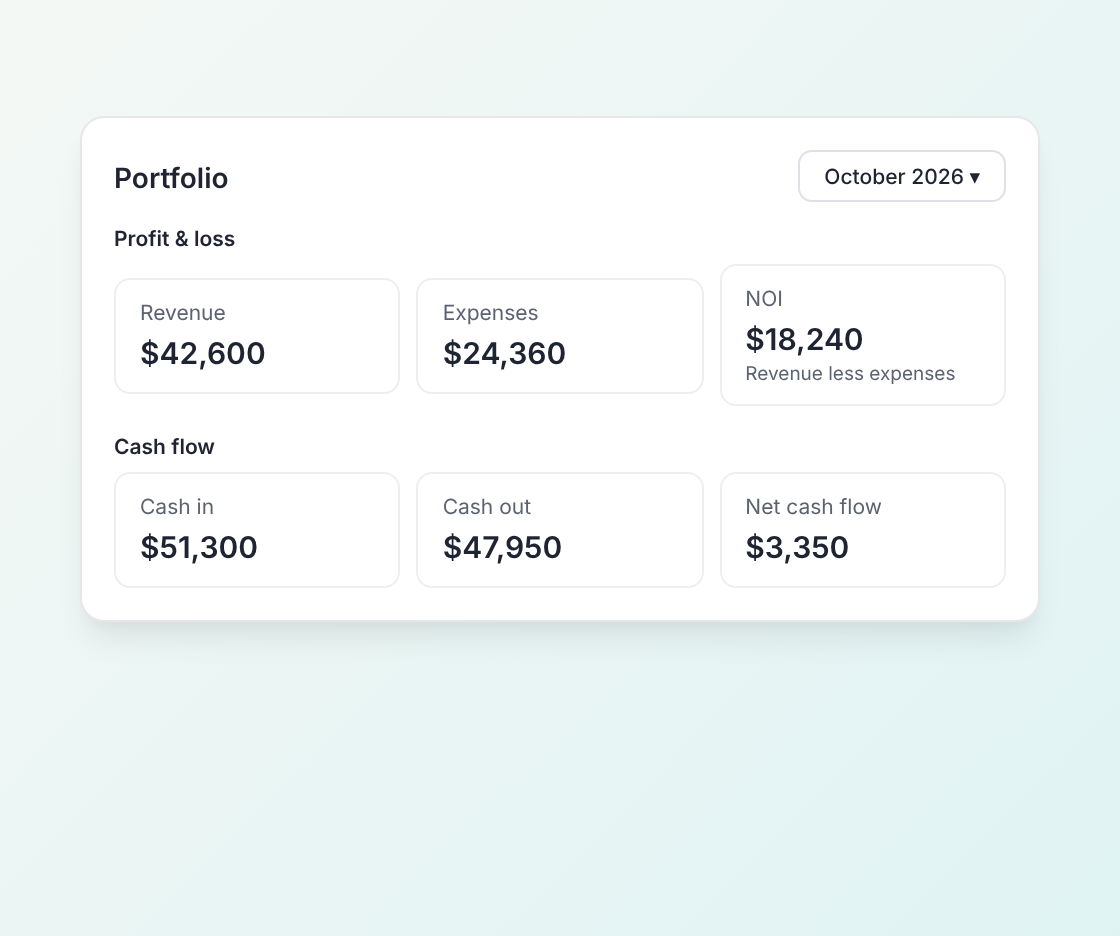
The Portfolio page answers how the company did this month. It shows profit and loss, cash flow, occupancy and your top properties and owners, all for one month.
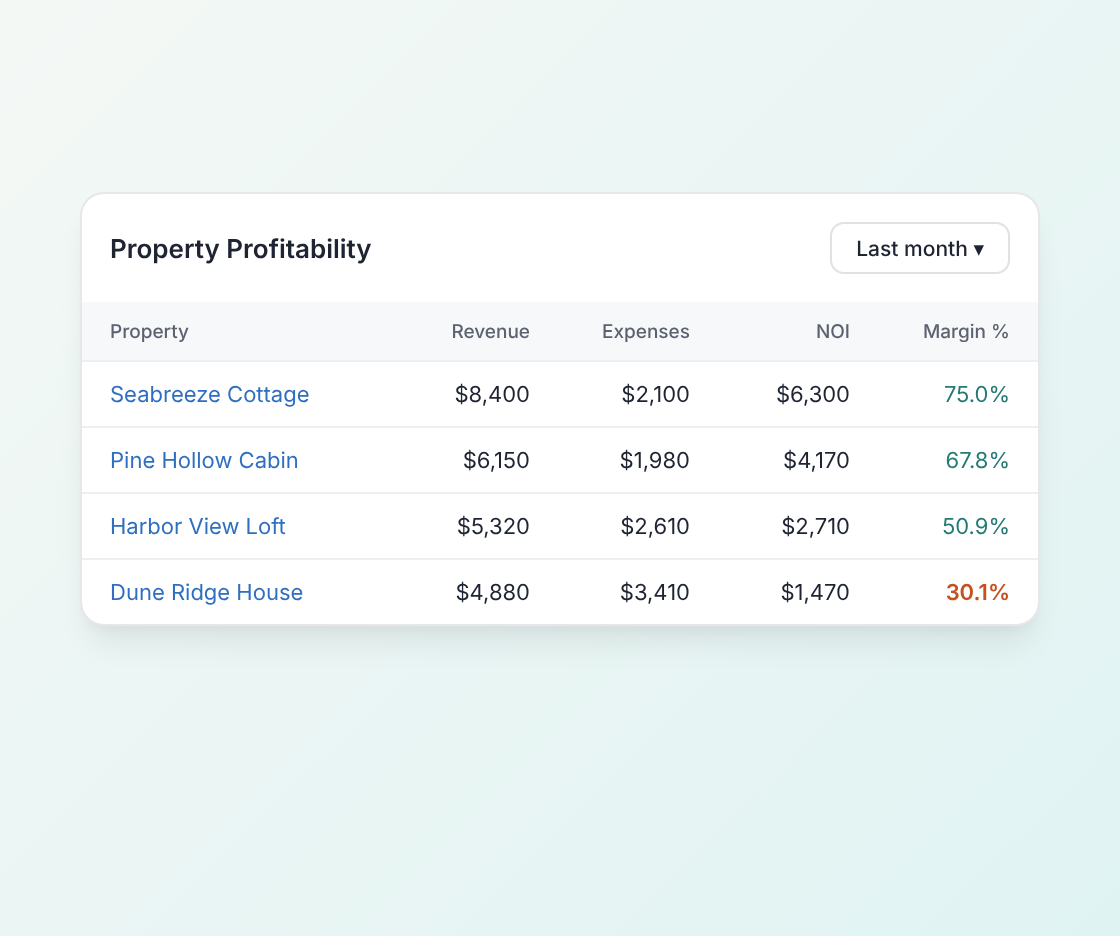
The Property Profitability widget on your dashboard answers which houses are pulling their weight. It lists each property with its revenue, expenses, NOI and margin.
See the Whole Portfolio
Open the Portfolio Page
- In the sidebar, click Organization.
- On the organization dashboard, click View portfolio.
The Portfolio page opens on the latest month.
Read Profit & Loss
The Profit & loss section shows four numbers. Revenue and Expenses come from your finalized owner statements. NOI sits under them, labeled "Revenue less expenses." Commission shows what you earned, with your fees for the month underneath. It comes from your owner contracts, and our owner contracts guide shows how it's worked out.
Because Profit & loss is built from finalized owner statements, it matches what you told owners. If a statement isn't finalized yet, it isn't in the total.
Read Cash Flow
The Cash flow section shows what actually moved. Cash in and Cash out are the money that came into and left your accounts in Topkey that month, and Net cash flow is the difference. Owner distributions is what your finalized statements say owners are owed.
Profit and cash rarely match in the same month. A big payout can land in October for a September stay. Reading both tells you whether a good month on paper was also a good month in the bank.
See How Properties and Owners Performed
Below those, Property performance shows Properties reporting, Nights booked, Average occupancy and ADR for the month.
Top properties by revenue lists your highest-earning houses with their occupancy. Top owners by distribution lists the owners you paid the most, with their revenue.
Pick a Different Month
Use the Period menu at the top to choose any of the last 12 months. The page shows one month at a time, so to compare two months, switch between them.
See Which Properties Make Money
The Property Profitability widget sits on your Topkey dashboard. It lists each property with Revenue, Expenses, NOI and Margin %.
- Revenue comes from the property's reservations, by check-in date.
- Expenses are the card charges and bill line items tagged to that property.
- NOI is revenue minus expenses.
- Margin % is NOI as a share of revenue.
Say a house brought in $8,400 last month and had $2,100 in charges and bills tagged to it. Its NOI is $6,300 and its margin is 75%.
The menu at the top of the widget changes the period. Choose Last 7 days, Last 14 days, Last 30 days, This month, Last month, This year, Last year or a Custom range. It starts on This month.
Click a property's name to open it in your properties list.
Why the Two Views Can Differ
The two views won't always show the same revenue, and that's expected.
The Portfolio page counts a month when its owner statement is finalized. The Property Profitability widget counts reservations by check-in date and expenses as they're tagged.
So use each for its own job. Portfolio for the company's month, as owners saw it. Property Profitability for spotting a house whose costs are creeping up before month-end.
Make the Numbers Complete
Both views are only as good as what's behind them.
For the Portfolio page, finalize every owner statement for the month. A statement in draft isn't counted. Our payout matching guide shows how to make sure every reservation was paid in full before it's posted.
For Property Profitability, tag every card charge and bill to a property. An untagged expense lowers no one's margin, which makes some houses look better than they are. Our bulk actions guide shows how to tag a whole batch of charges in one pass.
A Monthly Profit Check
Once statements are finalized, the check is short.
- Open the Portfolio page and choose last month.
- Read Profit & loss and Cash flow side by side.
- Look at Top properties by revenue and Average occupancy.
- On the dashboard, set Property Profitability to Last month and find the lowest margins.
- Pick one house to look into.
Five Rules for Numbers You Can Trust
1. Finalize Statements Before You Read the P&L
Why it matters. Profit & loss only counts finalized statements, so an early look shows a smaller month than you had.
Do this. Check the Portfolio page after the last statement for the month is finalized.
2. Tag Every Charge and Bill to a Property
Why it matters. Property Profitability only sees expenses with a property on them.
Do this. Fix charges with no property each week, not at month-end.
3. Compare Like with Like
Why it matters. Short-term rentals are seasonal. October next to July says more about the calendar than the business.
Do this. For a property, set Property Profitability to a Custom range for the same month last year. For the company, compare months in the same season.
4. Look at Margin, Not Just Revenue
Why it matters. The house with the most revenue can still have the thinnest margin.
Do this. Read Margin % in Property Profitability, not just the Revenue column.
5. Pick a Finalize Date and Keep It
Why it matters. The P&L only fills in as statements are finalized. Late statements mean a late P&L, the same problem you started with.
Do this. Choose a day, like the fifth, to finalize every statement for the month before. Put it on the team calendar.
Spot Your Next Profit Fix
A few signs point to what to change next.
- Last month's revenue looks low? Check for owner statements still in draft.
- A house's margin looks too good? Look for its charges and bills with no property.
- One house's expenses keep rising? Open its charges and bills for the month and find the cause.
Know How the Month Went
With Topkey, statements are finalized on the fifth, and by lunch you know your revenue, your NOI, what went to owners and which two houses need a closer look.
Chad Wise, Founder of HostWise (105 properties on Hostaway), told us why that matters. "In our industry, which is frankly a low-margin business, if you miss a relatively small expense on a property, that can wipe out your margins for that month, if not more."
See Last Month Now
If you use Topkey, open your Portfolio page and pick last month. If you don't yet, see how Topkey handles owner statements and revenue reconciliation.
Profit and Cash Flow FAQ
Click Organization in the sidebar, then View portfolio. Profit & loss is on the Portfolio page.
Your finalized owner statements for that month.
Revenue less expenses, on both the Portfolio page and the Property Profitability widget.
Yes. The Property Profitability widget on your dashboard shows Revenue, Expenses, NOI and Margin % for each property.
The Portfolio page uses finalized owner statements by month. The widget uses reservations by check-in date and expenses tagged to each property.
The Portfolio page covers the last 12 months. The widget goes back as far as you set a Custom range.