
How to Get Every Vendor Bill into Topkey Without Typing It In
Forward vendor invoices to your Topkey bills email, connect Gmail or upload them, and Topkey reads the amount, due date and line items so your team reviews bills instead of typing them.
- Published
- Product area
- Bill Pay
The Bills That Pile Up Before Anyone Pays Them
The plumber emails a PDF, the utility company mails paper and the landscaper sends one invoice for each of your forty houses. By Friday there's a stack, and someone spends the afternoon typing vendor names, amounts and due dates.
One property manager we work with got 19 invoices from a single vendor at once, each for a different property. Every one had to be keyed in before anyone could pay it.
This guide shows how to get every vendor bill into Topkey without typing it in. You send bills to one address, connect Gmail or upload them, Topkey reads them, and your team checks the details instead of entering them.
Three Ways In
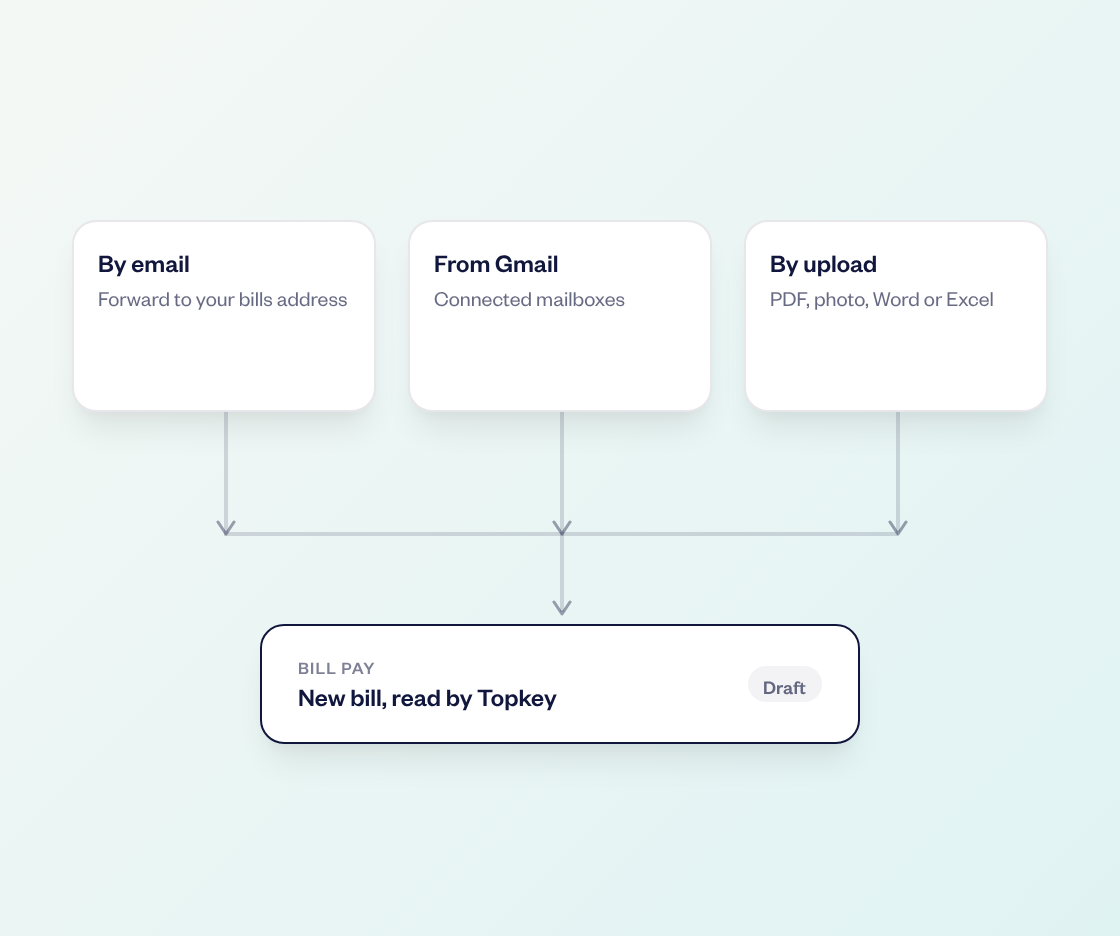
Most bills come in by email. Every account has its own bills address, and Topkey reads whatever invoices you send to it. If your team works in Google Workspace, you can also connect Gmail and let Topkey pick up bills straight from the mailboxes you choose.
The rest you upload. Drop a PDF, photo, Word or Excel file into Bill Pay, or enter the bill by hand when there's no file.
Forward Bills to Your Topkey Email
- Go to Bill Pay → Bills.
- Open Actions and choose Send by Email.
- Under Bills by Email, find your Secret Email and click Copy.
Give that address to your vendors, or set your accounts payable mailbox to forward every invoice to it. Scan paper bills and email them in too.
If one email has several invoices attached, Topkey reads each one and makes a bill for each. If an email has no attachment, Topkey can still read an invoice written in the email itself.
Every email shows up under Bill Pay → Inbox, sorted into Pending, Success, Failed and Error. Success links to the bills it made. Failed means no invoice was found. Error means something went wrong while reading it, and Retry runs it again.
Anyone who has the address can send to it, so share it with vendors and your team, not on your website.
Connect Gmail
If your accounts payable inbox lives in Google Workspace, you can skip forwarding altogether. Topkey watches the mailboxes you choose and turns the invoices it finds into bills.
- Go to Settings → Mail Integrations → Gmail.
- Click Connect. Your Google Workspace admin approves Topkey for your company's domain.
- Click Verify Connection.
Once it's connected, Sync All runs it right away. Bills from Gmail show up in your Unified Inbox, not under Bill Pay → Inbox. Receipts that land in the same mailbox go to the Unified Inbox too.
If you don't see Mail Integrations under Settings, ask your Topkey CS rep to turn it on.
Upload a Bill
- Go to Bill Pay → Bills and click Pay a Vendor.
- Drop in the invoice. PDF, image, Word and Excel files all work.
- Click Create.
The file is optional. When a vendor gives you an amount but no invoice, fill in the details yourself and click Create.
What Topkey Reads for You
A new bill starts in Draft while Topkey reads it. You'll see "This bill is currently being processed," with a Reload button.
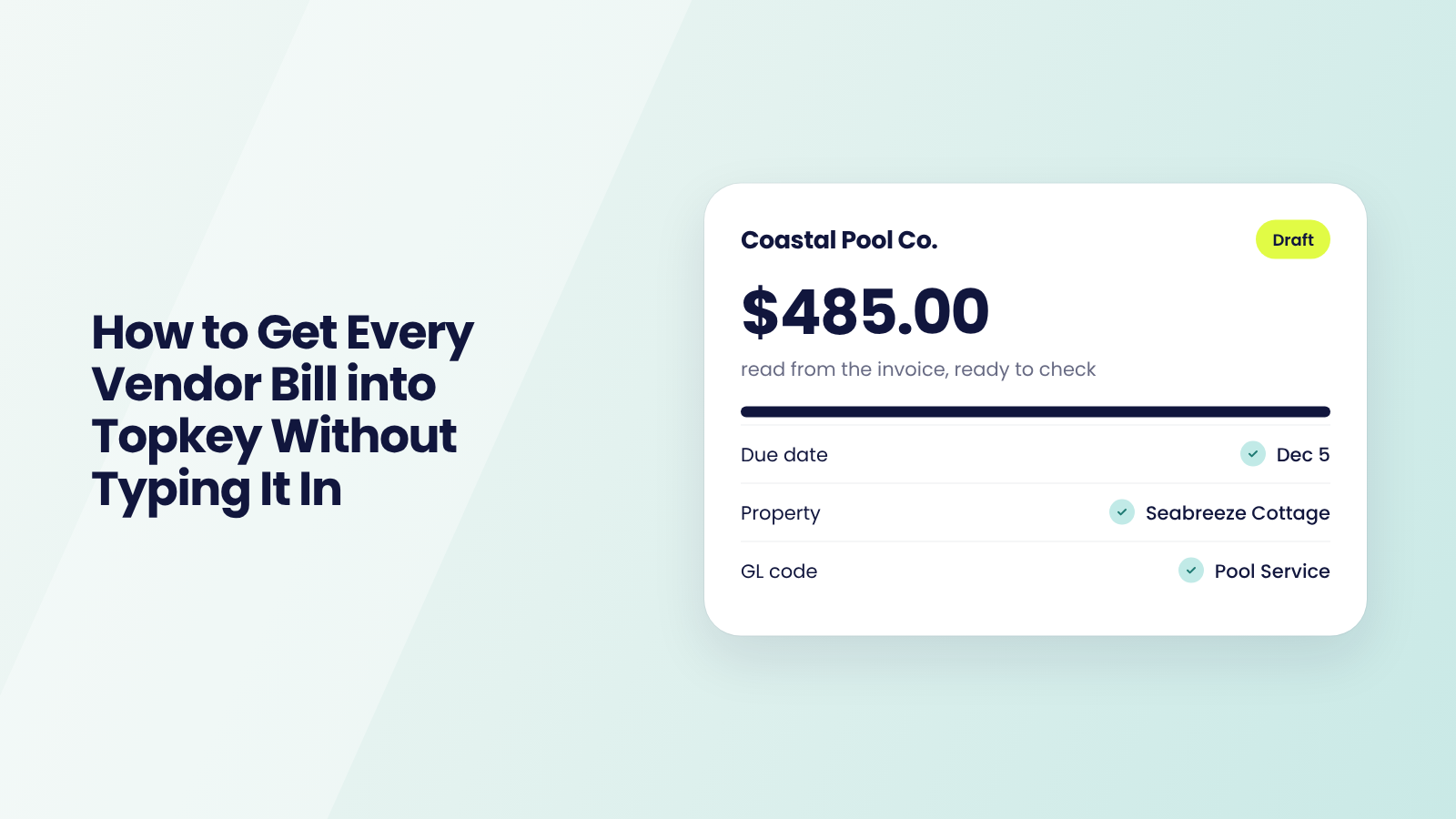
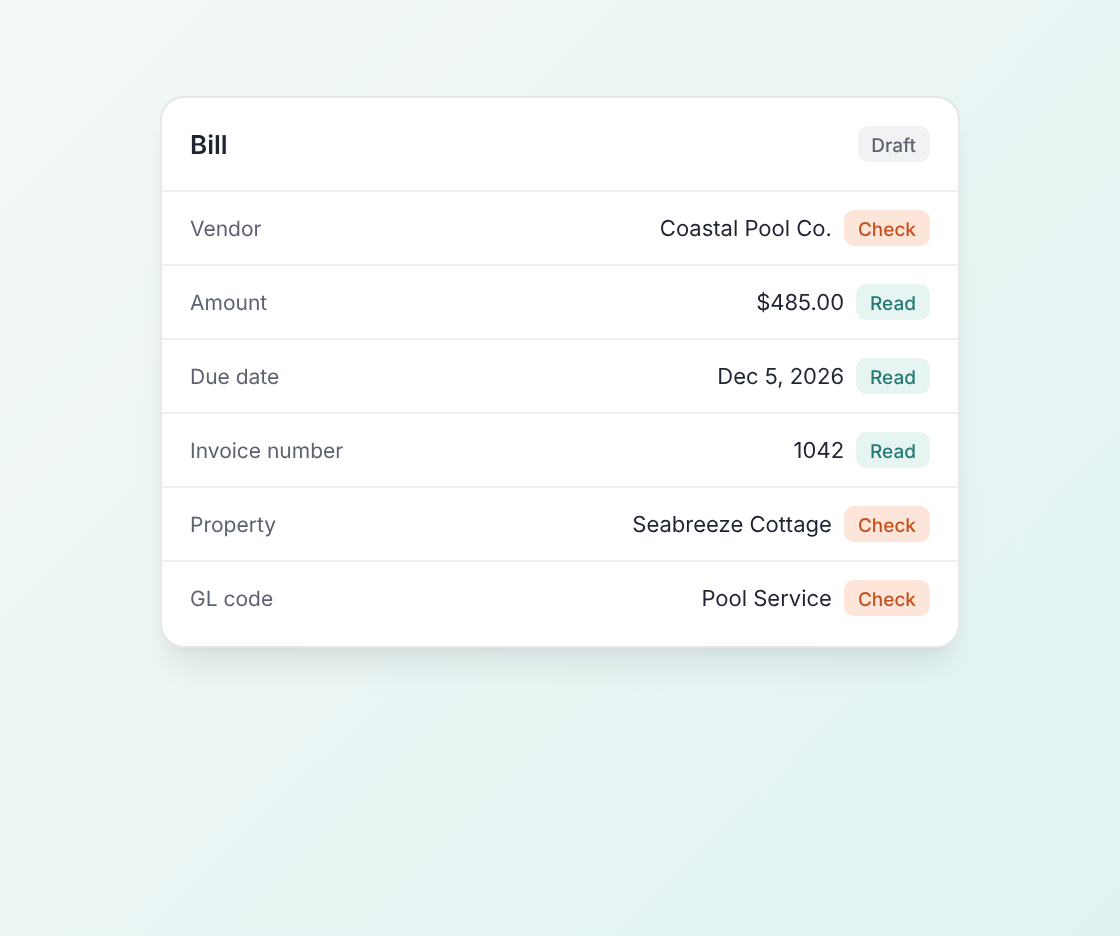
Topkey reads the amount, due date, invoice number and line items. It matches the vendor when it can, and suggests a property and GL code for each line.
Before you submit, check the vendor and the property and GL code on each line, add a description if you need one, and choose how you'll pay.
As Charles Kombrink, Bookkeeper and Financial Assistant at Host2Coast (250+ units on Track), told us, "Gets the vendor correct every time, gets the description correct, gets the amount right."
When the Vendor Is New
If Topkey can't match the vendor, the vendor field stays blank. Pick an existing vendor or click Create a new vendor.
The New Vendor form has sections for Vendor details, Main contact, Address, Tax & compliance, ACH Information, Wire Information and Check Printing.
To get the vendor's bank details without emailing account numbers around, add them as a contact and use Send Secure ACH Link. To ask several vendors at once, select them on the vendors list and choose Collect ACH Info. Our owner payouts guide walks through the same secure link for owners.
Catch Duplicates Before You Pay
When a bill looks like one you already have, Topkey shows "Duplicate Invoice Found" on it. Click Confirm if it really is a duplicate, and Topkey archives it. Click Not Duplicate if it isn't, and the warning goes away.
Set Up Bills That Repeat
For a bill that comes every month, open the draft bill, go to Details and click edit. Under Frequency, choose Recurring.
Repeats every sets the number of weeks, months or years. Create Bill sets how many days before the due date Topkey makes the next one. End Date stops it, and leaving it blank keeps it going.
Then decide what happens when each new bill is made. Leave it in Draft for review holds it for a person to check. Submit it automatically sends it on. You can also let recurring bills skip the approval process.
From Draft to Paid
Once a bill is checked, submit it. If you use approval workflows, it goes to the approver, then waits in Ready To Pay.
Our approval workflows guide shows how to set up sign-offs, and our bulk actions guide shows how to pay a whole batch at once.
Five Rules for a Clean Bills Inbox
1. Send Every Bill to One Address
Why it matters. Bills that live in five inboxes get paid late or twice.
Do this. Forward your accounts payable mailbox to your Topkey bills address, or connect Gmail.
2. Require an Attachment
Why it matters. It's off by default, so a reply with an invoice typed into the email can still become a bill.
Do this. If you only want real invoices, turn on Require attachment for emailed invoices under Settings → Bill Submission Rules.
3. Require a Property and GL Code
Why it matters. A bill with no property never reaches the right owner statement.
Do this. Under Bill Submission Rules, turn on Require property and Require GL code, so no bill is submitted without them.
4. Collect Bank Details When a Vendor Is New
Why it matters. A vendor without bank details can't be paid by ACH on payday.
Do this. Send the Secure ACH Link the day you add the vendor.
5. Start Recurring Bills in Draft
Why it matters. A bill that goes out on its own is easy to forget about when the amount changes.
Do this. Choose Leave it in Draft for review until you trust the vendor's amount every month.
Spot Your Next Bill Fix
A few signs point to what to change next.
- A bill never showed up? Check Bill Pay → Inbox for Failed or Error.
- Still typing amounts in? Forward the invoice to your bills address instead.
- The same vendor field blank every time? Create the vendor once and Topkey matches it next time.
- A bill on the wrong owner statement? Turn on Require property.
Those 19 Invoices Now
Now those 19 invoices come in one email, and Topkey makes 19 draft bills. Someone checks the property on each one and submits them.
Getting Bills In FAQ
Go to Bill Pay → Bills, open Actions and choose Send by Email. Copy the Secret Email.
Yes. Topkey reads each attachment and makes a bill for each invoice.
PDF, image, Word and Excel files.
Yes. It shows "Duplicate Invoice Found," and you choose Confirm or Not Duplicate.
Yes. Set Frequency to Recurring on a draft bill.
It shows as Failed in Bill Pay → Inbox, and no bill is made.
Yes. Connect Gmail under Settings → Mail Integrations, and invoices in the mailboxes you choose become bills.
Copy Your Bills Address
If you use Topkey, open Bill Pay → Bills → Actions → Send by Email and copy your address. If you don't yet, see how Topkey Bill Pay works.